Retail Management System
Overview
This Retail Management Software (RMS) is a comprehensive, all-in-one platform engineered to streamline retail and wholesale operations by combining granular Role-Based Access Control (RBAC), real-time stock alert monitoring, barcode label generation, and multi-tier wholesale unit management with robust Point of Sale (POS) shift and cash drawer reconciliation tools. It unifies core business workflows with integrated double-entry bookkeeping (Chart of Accounts and Journal Entries), multi-dimensional analytics and profit-and-loss reporting, customizable tax and thermal receipt parameters, secure database backup utilities, and built-in Omni channel support—including direct VoIP calling and a prioritized ticketing system—to ensure complete operational efficiency, financial transparency, and platform reliability.
Login Screen
Purpose
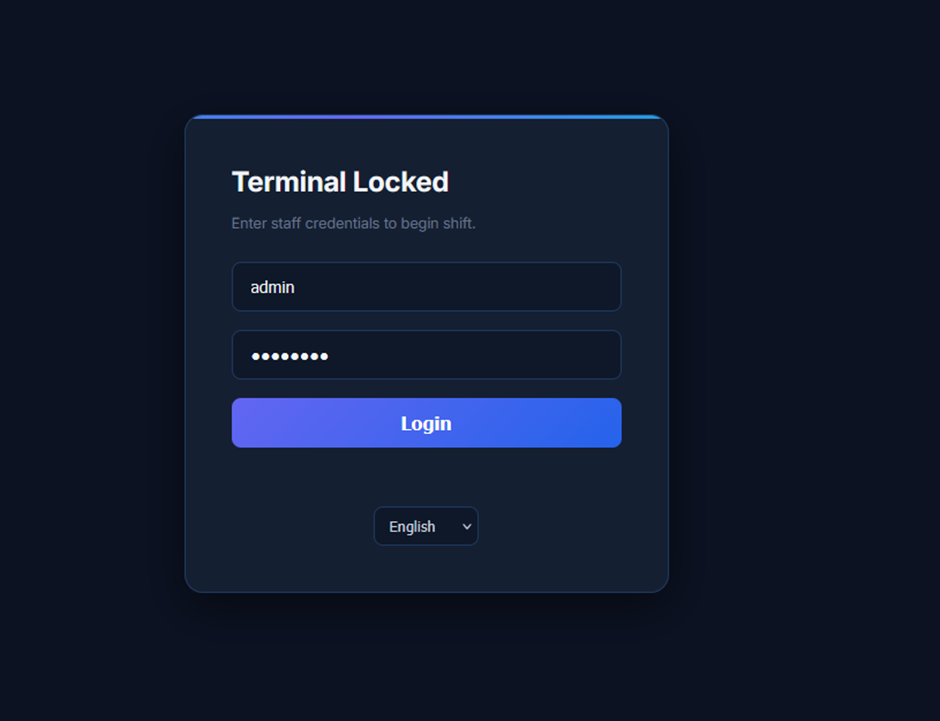
The Terminal Locked / Shift Authentication interface acts as the frontline access control barrier for POS stations and administrative dashboards. It ensures operational accountability by requiring staff members to enter their assigned credentials before starting a shift, preventing unauthorized terminal use, securing active financial data, and personalizing role-based permissions from the moment a user logs in.
Features
1. Header & Terminal Context
· Card Title: Clearly indicates current system state (Terminal Locked).
· Instructional Subtitle: Guides employees on the required action (Enter staff credentials to begin shift.).
2. Authentication Input Fields
· Username / ID Input Field: Pre-filled/active text field capturing the staff member's identifier (e.g., admin).
· Password / PIN Input Field: Secure, masked text field (••••••••) ensuring credential privacy during terminal unlocking.
3. Action Controls & Localization
· Login CTA Button: Prominent, solid blue primary action button (Login) to validate credentials, authenticate the user session, and open the active workspace.
· Language Selector Dropdown: Bottom-centered dropdown menu defaulting to English
⌵ to toggle platform localization for multinational staff.
Point of Sale (POS) Screen
Purpose
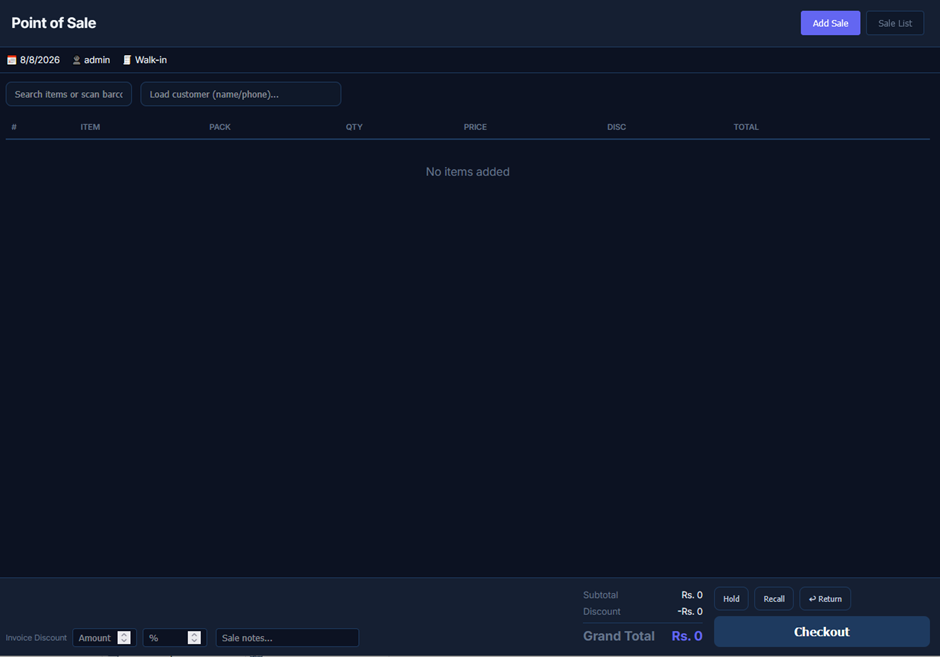
The Point of Sale screen functions as the primary operational checkout terminal. It empowers front-of-house staff to compile customer tickets, search inventory databases via text or barcode peripherals, link transactions to specific customer accounts, manage active order states (hold/recall), and finalize sales to update real-time revenue metrics and trigger receipt printing.
Features
1. Header Navigation & Session Metadata
· Header Actions: Top right toggle buttons allowing the user to initiate a new transaction (Add Sale) or navigate to the historical ticket registry (Sale List).
· Session Indicators: A metadata bar directly below the header displaying the active business date (8/8/2026), the currently authenticated staff profile (admin), and the default order classification (Walk-in).
2. Search & Customer CRM Controls
· Item Search Bar: A primary input field (Search items or scan barcode...) engineered for rapid product entry using text lookup or hardware barcode scanners.
· Customer Lookup Field: An integrated CRM search box (Load customer (name/phone)...) used to associate the active cart with a registered customer profile for loyalty tracking, credit ledgers, or personalized receipts.
3. Transaction Cart Data-Grid
A structured, tabular matrix designed to display active order line items in real-time as they are scanned or selected:
· Tabular Columns:
o #: Line item index.
o ITEM: Product name or identifier.
o PACK: Product variant, size, or packaging type.
o QTY: Selected quantity (with adjustability).
o PRICE: Unit selling price.
o DISC: Line-item specific discount.
o TOTAL: Calculated row subtotal.
· Empty State: Features a centered placeholder message (No items added) indicating a fresh, unpopulated transaction ticket.
4. Financial Summary & Checkout Controls
· Invoice Discounting & Notes (Bottom Left):
o Inputs to apply a global ticket markdown via a flat currency Amount or a percentage %.
o A Sale notes... text field to attach special preparation instructions or internal memos to the receipt.
· Billing Summary (Bottom Right): Live calculation panel displaying the ticket's Subtotal, subtracted Discount, and a prominent Grand Total dynamically calculated in the local currency (Rs. 0).
· Ticket State Actions: Operational buttons allowing the cashier to Hold an active ticket for later, Recall suspended orders, or initiate a Return for product refunds.
· Checkout CTA: A massive, prominent blue action button (Checkout) designed to lock the cart, process the tender, log the financial data, and conclude the transaction.
Customers
Purpose
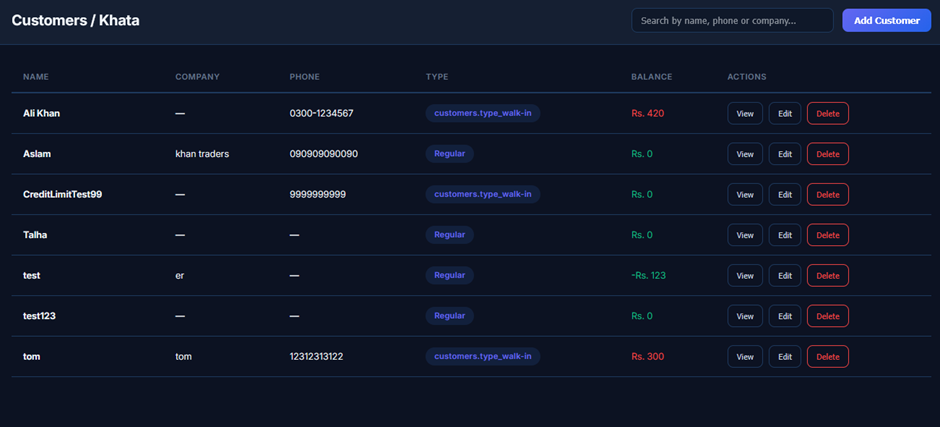
The Customers / Khata interface functions as the central client directory and credit ledger console. It enables operational staff to quickly look up registered accounts, check outstanding balances or credit surpluses, add new client profiles, and initiate account actions such as viewing ledgers, editing details, or removing accounts.
Features
1. Header Navigation & Search Controls
· Module Heading: Clearly displays the active section title (Customers / Khata).
· Customer Search Bar: Text input field (Search by name, phone or company...) located at the top right for rapid profile lookups.
· Add Customer CTA Button: Solid blue action button (Add Customer) to open the customer creation modal and register a new client profile.
2. Master Customer Directory & Ledger Data-Grid
A structured, dark-themed tabular matrix detailing customer profiles, classifications, and financial standing:
· Tabular Directory Columns:
o NAME: Full display name or identifier of the customer.
o COMPANY: Registered business entity or trading name (if applicable).
o PHONE: Contact telephone number for balance reminders, order confirmations, and notifications.
o TYPE: Category badge defining customer tier or classification (e.g., Regular, customers.type_walk-in).
o BALANCE: Real-time net account balance color-coded for clarity:
§ Red Text: Indicates outstanding receivable balance owed by the customer (e.g., Rs. 420, Rs. 300).
§ Green Text: Indicates a cleared balance (Rs. 0) or an advance/surplus credit balance (e.g., -Rs. 123).
o ACTIONS: Set of dedicated interactive buttons:
§ View: Opens the customer’s detailed Khata ledger and transaction history.
§ Edit: Opens the profile editor to update contact info, company details, or credit limits.
§ Delete: Removes the customer profile from the active directory.
Add Customer Screen
Purpose
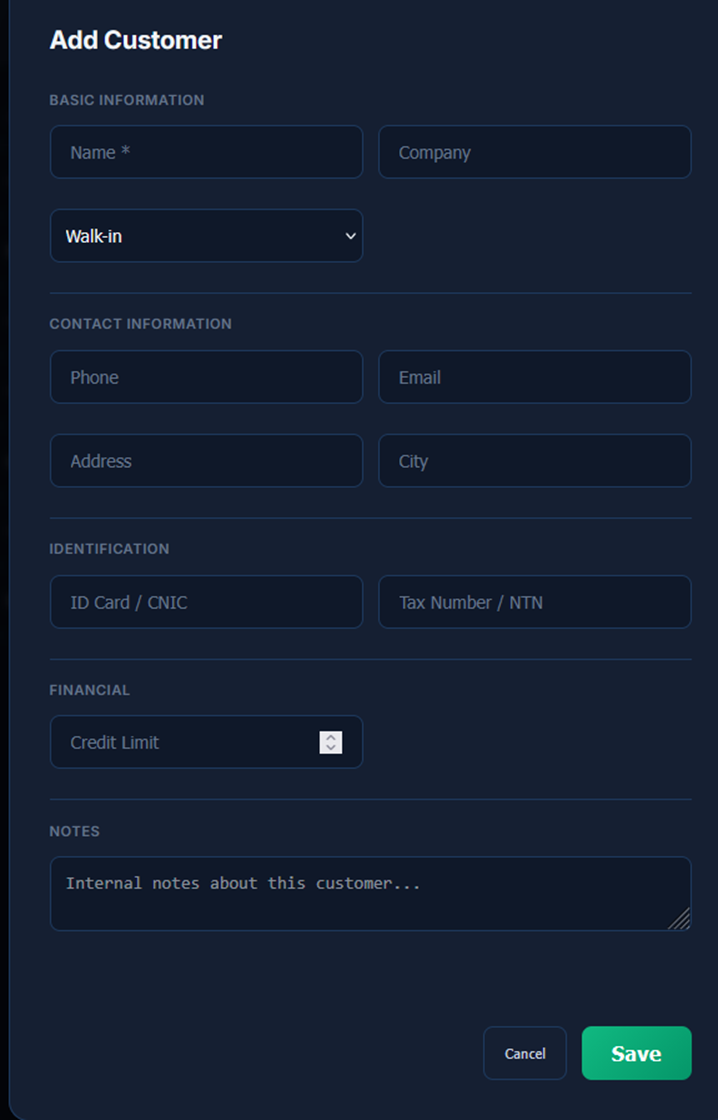
The Add Customer screen provides a structured form to onboard new clients, capture essential contact and identification parameters, set financial credit ceilings for balance-based ordering, and store internal operational notes for personalized customer service.
Features
1. Basic Information Section
· Name Field: Mandatory text input (Name *) to record the customer’s full legal or display name.
· Company Field: Optional input box (Company) to register corporate affiliations, catering clients, or business names.
· Customer Type Selector: Category dropdown menu defaulting to Walk-in to segment patrons (e.g., Walk-in, Regular, Corporate).
2. Contact Information Section
· Phone Field: Text input (Phone) for recording mobile contact numbers used for order delivery coordination, WhatsApp receipts, and balance alerts.
· Email Field: Electronic mail input (Email) for sending digital invoices and promotional announcements.
· Address Field: Physical location text box (Address) to store street-level delivery destinations.
· City Field: Locality input field (City) for regional segmentation.
3. Identification Section (Compliance & Tax)
· ID Card / CNIC Field: Secure national identification field (ID Card / CNIC) for verifying customer identity on high-value credit accounts.
· Tax Number / NTN Field: Corporate tax registration input (Tax Number / NTN) to support institutional invoicing and statutory tax reporting.
4. Financial Controls
· Credit Limit Field: Numerical entry box with increment spinners (Credit Limit) to set a maximum allowable debt balance, safeguarding the business against overextended credit orders.
5. Notes & Observations
· Internal Notes Text Area: Expandable multiline input area with placeholder guidance (Internal
notes about this customer...) to log dietary preferences, delivery instructions, or credit terms.
6. Modal Form Actions
· Cancel Button: Secondary dark button (Cancel) located at the bottom right to abort account creation and discard uncommitted inputs.
· Save CTA Button: Prominent solid green action button (Save) to validate all inputs and register the new customer profile into the database.
Returns & Refunds Screen
Purpose
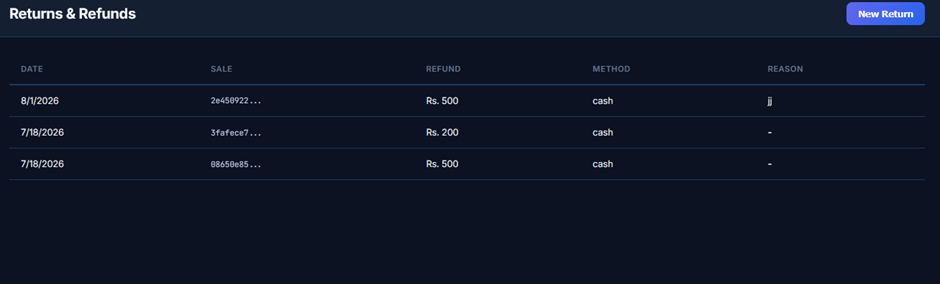
The Returns & Refunds screen functions as the master audit ledger for all processed transaction reversals. It enables management to review historical customer refunds, verify the original invoice references, monitor refunded cash amounts, and inspect the operational reasons logged for product or order cancellations.
Features
1. Header Navigation & Refund Actions
· Module Heading: Displays the active section title (Returns & Refunds).
· New Return CTA Button: Solid blue action button (New Return) located at the top right to initiate a new return ticket and process a customer reimbursement.
2. Master Returns & Refunds Audit Data-Grid
A structured, dark-themed tabular matrix detailing all processed refund transactions:
· Tabular Audit Columns:
o DATE: Calendar date when the return or refund transaction occurred (M/D/YYYY).
o SALE: Unique truncated transaction hash or order ID linking back to the original sales ticket (e.g., 2e450922..., 3fafece7..., 08650e85...).
o REFUND: Exact monetary amount disbursed or reimbursed to the customer (e.g., Rs. 500, Rs. 200).
o METHOD: Payment channel utilized to return the funds (e.g., cash).
o REASON: Contextual note or operational code explaining the reversal (e.g., jj, or unrecorded -).
New Return Modal Screen
Purpose
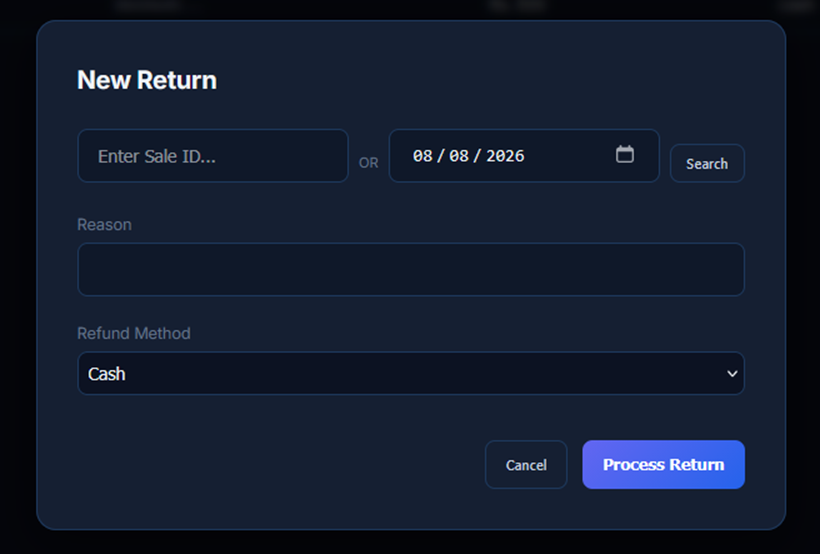
The New Return interface serves as the processing form for initiating and validating sales returns. It allows operational staff to look up existing sales tickets, document customer return justifications, choose appropriate payout channels, and execute refund transactions securely.
Features
1. Modal Header
· Title: Clearly displays the active form heading (New Return).
2. Transaction Lookup Controls
· Sale ID Input Field: Text box (Enter Sale ID...) to fetch the original invoice via its unique order identifier or transaction hash.
· Divider: OR condition indicator (OR).
· Date Picker Field: Calendar selector input field (08 / 08 / 2026 ) to filter and retrieve invoices generated on a specific date.
· Search Button: Dedicated trigger button (Search) to query the sales database and load the matching invoice details.
3. Return Details & Reimbursement Settings
· Reason Input Field: Full-width text input box (Reason) to document the customer's justification for the refund (e.g., incorrect order, quality issue, cancellation).
· Refund Method Dropdown: Selection menu defaulting to Cash ⌵ to define the tender type used for reimbursement (e.g., Cash, Card, Store Credit).
4. Modal Form Actions
· Cancel Button: Secondary dark button (Cancel) located at the bottom right to dismiss the modal without saving changes.
· Process Return CTA Button: Prominent solid blue action button (Process Return) to commit the refund, adjust the daily cash drawer, and update the ledger.
Customer Payments / Khata List Screen
Purpose
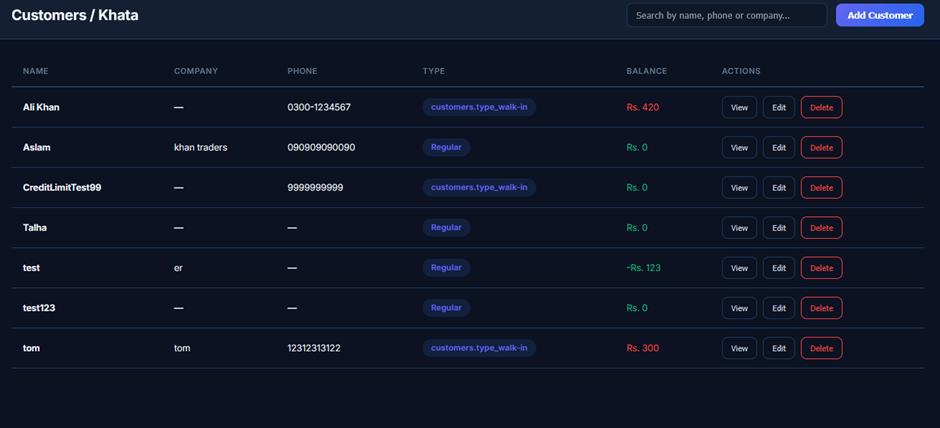
The Customers / Khata (Payment & Ledger List) screen provides an operational overview of all customer balances. It serves as the launchpad for initiating balance collections, auditing transaction histories via the detailed ledger view, updating account information, or deleting inactive client profiles.
Features
1. Header Navigation & Quick Lookup Controls
· Module Heading: Displays the section title (Customers / Khata).
· Customer Search Field: Interactive search bar (Search by name, phone or company...) located at the top right for fast filtering of customer records.
· Add Customer CTA Button: Solid blue action button (Add Customer) to register a new customer profile directly from the ledger view.
2. Master Customer Payment & Balance Data-Grid
A structured, dark-themed tabular matrix detailing customer profiles, classifications, and current financial balances:
· Tabular Columns:
o NAME: Full name or account label of the customer.
o COMPANY: Associated business or company name (— if individual/unassigned).
o PHONE: Contact phone number used for payment reminders and receipts.
o TYPE: Category badge indicating customer tier (e.g., customers.type_walk-in, Regular).
o BALANCE: Net real-time balance color-coded for quick financial auditing:
§ Red Text: Positive debt balance owed to the store by the customer (e.g., Rs. 420, Rs. 300).
§ Green Text: Zero balance (Rs. 0) or negative/advance payment credit held by the store (e.g., -Rs. 123).
o ACTIONS: Set of dedicated interactive controls:
§ View: Navigates to the customer's detailed payment ledger and transactional statement.
§ Edit: Opens the customer profile editor to update contact info, credit terms, or company details.
§ Delete: Removes the customer account from the active registry.
Expenses Screen
Purpose
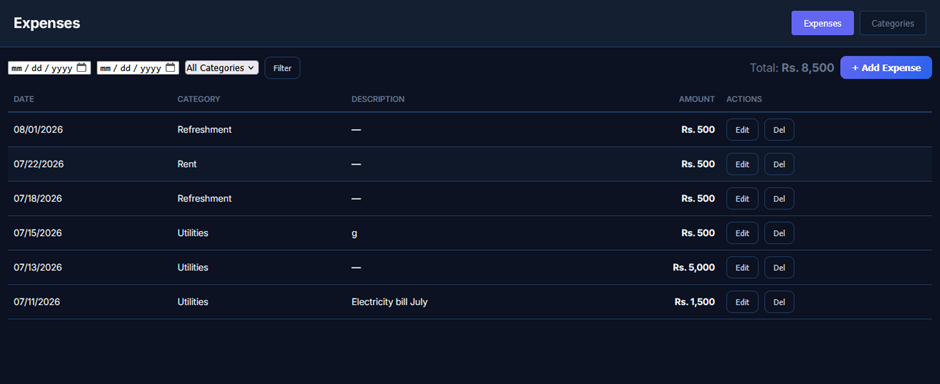
The Expenses screen functions as the master expenditure register and cost analysis console. It enables administrative and financial personnel to log outgoing payments, monitor expenditure distribution across categories, filter historical financial entries, calculate total operational costs, and modify or delete recorded transactions.
Features
1. Header Navigation & View Switching
· Module Heading: Displays the active section title (Expenses).
· Navigation View Tabs: Top right toggle buttons to switch between the main transactional ledger (Expenses) and category management (Categories).
2. Date & Category Filtering Controls
· Date Range Pickers: Start and end calendar input fields (mm / dd / yyyy ) to scope transactions to a specific accounting period.
· Category Dropdown Filter: Menu selector defaulting to All Categories ⌵ to filter expense entries by designated account heads (e.g., Utilities, Rent, Refreshment).
· Filter Trigger Button: Action button (Filter) to execute queries and update the visible data grid.
3. Expense Aggregation & Action Controls
· Total Expenditure Badge: Prominently calculates the cumulative sum of filtered expenses (Total: Rs. 8,500).
· + Add Expense CTA Button: Solid purple primary action button (+ Add Expense) to open the expense intake form and record a new transaction.
4. Master Expenses Data-Grid
A structured, dark-themed tabular ledger detailing individual expenditure records:
· Tabular Columns:
o DATE: Date of the expense entry (MM/DD/YYYY).
o CATEGORY: Allocated expenditure head (e.g., Refreshment, Rent, Utilities).
o DESCRIPTION: Line-item memo or contextual detail (e.g., Electricity bill July, g, or unrecorded —).
o AMOUNT: Transaction value displayed in bold currency formatting (e.g., Rs. 500, Rs. 5,000, Rs. 1,500).
o ACTIONS: Set of direct row-level management buttons:
§ Edit: Opens the transaction editor to modify amount, date, description, or category.
§ Del: Removes the record from the ledger.
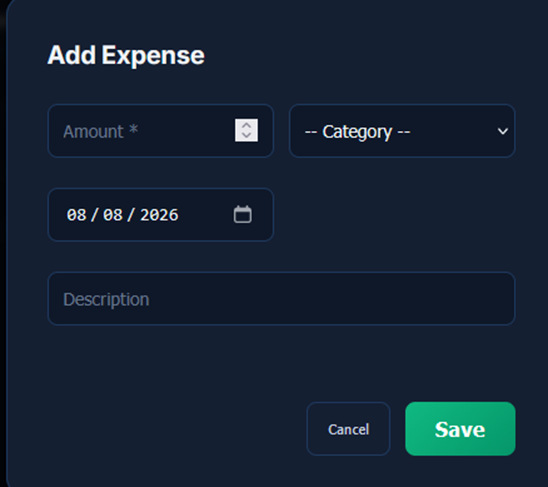
Add Expense Modal Screen
Purpose
The Add Expense modal provides a streamlined interface for entering and validating outgoing payments. It ensures complete financial tracking by capturing the exact expenditure amount, assigning relevant expense categories, stamping the transaction date, and storing contextual descriptions to facilitate accurate periodic expense auditing.
Features
1. Form Header & Financial Inputs
· Modal Title: Prominently positions the active modal heading (Add Expense).
· Amount Field: Mandatory numeric text field (Amount *) equipped with increment/decrement stepper controls for entering exact transaction values.
· Category Dropdown Selector: Menu selector defaulting to (-- Category -- ⌵) to classify the expenditure under designated ledger heads (e.g., Utilities, Rent, Refreshment, Maintenance).
2. Transaction Parameters & Documentation
· Expense Date Field: Calendar date-picker input field pre-filled with the active operating date (08 / 08 / 2026 ) to log when the payment was disbursed.
· Description Field: Full-width text input box (Description) to record supporting transaction memos, vendor details, or itemized notes.
3. Modal Form Actions
· Cancel Button: Secondary dark button (Cancel) located at the bottom right to dismiss the intake form and discard uncommitted inputs.
· Save CTA Button: Solid green primary action button (Save) to validate input fields, commit the expense entry into the financial ledger, and adjust daily totals.
Expense Categories Screen
Purpose
The Expense Categories screen functions as the central management console for expenditure taxonomy. It allows operational staff to review all active expense classifications, inspect category descriptions, provision new cost heads, and edit or delete existing category definitions.
Features
1. Header Navigation & Category Provisioning
· Module Heading: Displays the active section title (Expense Categories).
· + Add Category CTA Button: Solid blue primary action button (+ Add Category) located at the top right to open the category creation form.
2. Master Expense Categories Data-Grid
A structured, dark-themed tabular matrix detailing all registered expenditure heads:
· Tabular Columns:
o NAME: Official display title of the expense head (e.g., Refreshment, Rent, Utilities).
o DESCRIPTION: Contextual breakdown or scope note clarifying what expenditures fall under this head (e.g., Shop Rent, Electricity, Water, Gas, or —).
o ACTIONS: Set of dedicated row-level management triggers:
§ Edit: Opens the editor modal to update category names or descriptions.
§ Del: Removes the category from the active registry.
Vendors Screen
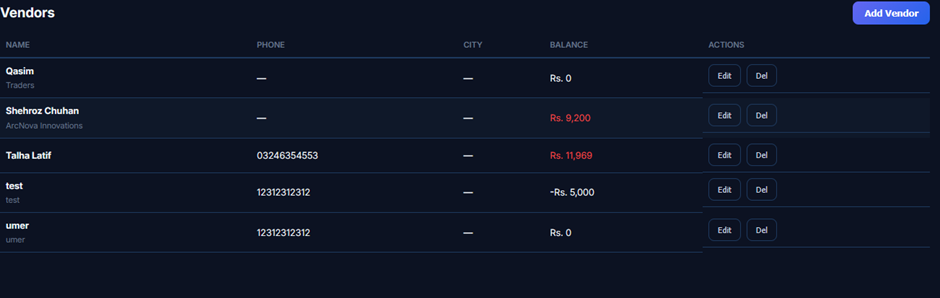
Purpose
The Vendors screen functions as the master ledger and directory for all registered suppliers and commercial service partners. It provides administrative personnel with an immediate snapshot of current credit/payable standings, allowing them to initiate new supplier onboardings, audit outstanding liabilities, and manage existing vendor profiles.
Features
1. Header Navigation & Vendor Onboarding
· Module Heading: Prominently positions the active section title (Vendors).
· Add Vendor CTA Button: Solid blue primary action button (Add Vendor) located at the top right to launch the supplier intake registration form.
2. Master Vendors Directory Data-Grid
A structured, dark-themed tabular matrix detailing vendor profiles, contact metadata, and active financial balances:
· Tabular Columns:
o NAME: Supplier or contact person's name with their associated business/company entity displayed underneath in subtle grey text.
o PHONE: Operational contact phone number for purchase orders, payment follow-ups, and confirmations (— if unrecorded).
o CITY: Operating city or regional location (— if unassigned).
o BALANCE: Real-time net account balance color-coded for quick financial auditing:
§ Red Text: Positive payable balance representing money owed by the business to the vendor (e.g., Rs. 9,200, Rs. 11,969).
§ White Text: Cleared/zero balance (Rs. 0).
§ Green Text / Advance: Advance payment or credit balance held with the supplier (e.g., -Rs. 5,000).
o ACTIONS: Dedicated row-level management triggers:
§ Edit: Opens the vendor profile editor to update contact details, payment terms, or business titles.
§ Del: Removes the vendor profile from the active directory.
Add Vendor Screen
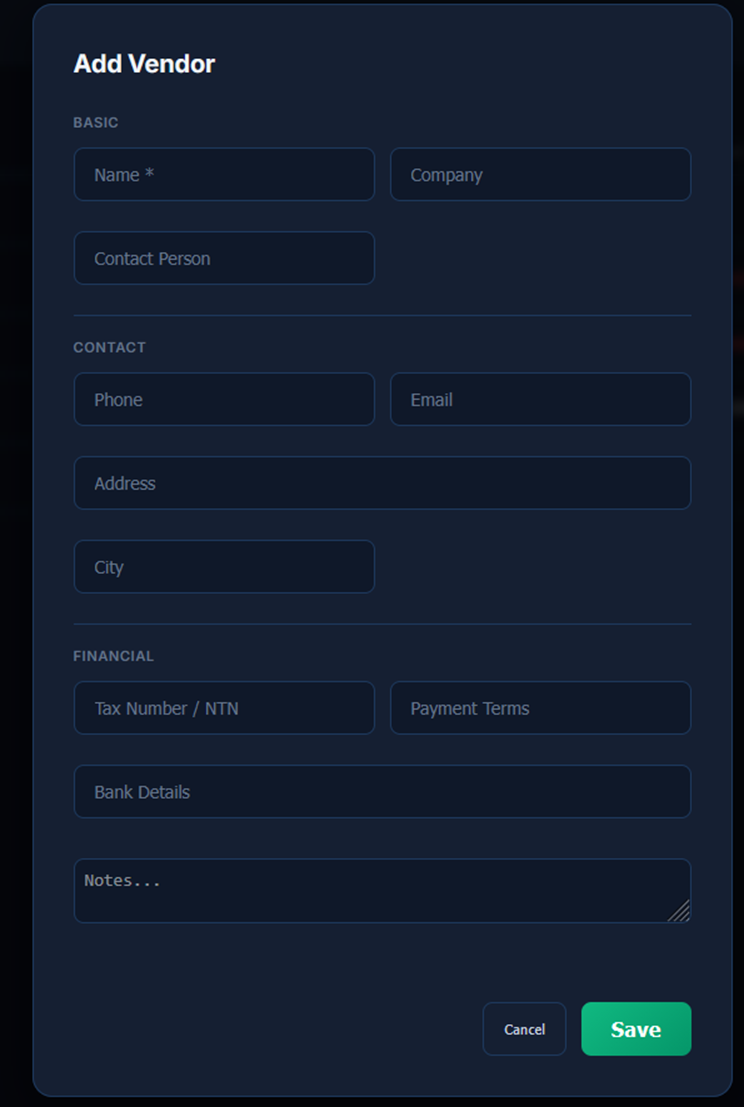
Purpose
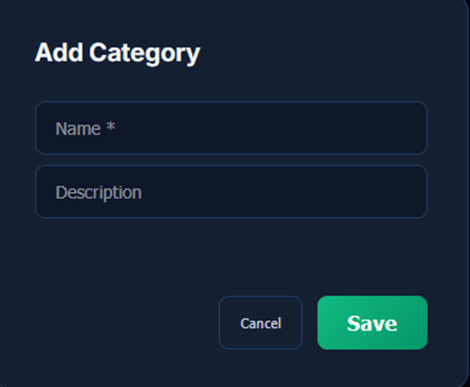
The Add Vendor modal provides a structured, dark-themed intake form to onboard external vendors, distributors, and service providers. It captures essential entity details, communications data, statutory tax numbers, and credit/payment parameters to establish a verifiable supplier profile in the database.
Features
1. Form Header
· Modal Title: Displays the active modal form title (Add Vendor).
2. Basic Information Section (BASIC)
· Name Field: Mandatory text input (Name *) to record the primary supplier or trading name.
· Company Field: Input box (Company) to register corporate legal entities or parent organizations.
· Contact Person Field: Dedicated field (Contact Person) to log the primary vendor representative or account manager.
3. Contact Information Section (CONTACT)
· Phone Field: Input field (Phone) for supplier telephone or mobile numbers.
· Email Field: Input field (Email) for purchase orders, payment receipts, and formal correspondence.
· Address Field: Full-width text input (Address) to record physical warehouses, offices, or fulfillment centers.
· City Field: Locality input box (City) for regional supplier segmentation.
4. Financial & Compliance Section (FINANCIAL)
· Tax Number / NTN Field: Formal corporate tax identification field (Tax Number / NTN) for FBR compliance and tax withholding documentation.
· Payment Terms Field: Input box (Payment Terms) to record agreed commercial credit periods (e.g., Net 30, COD, Advance).
· Bank Details Field: Full-width text field (Bank Details) to store beneficiary titles, bank names, account numbers, and IBANs for electronic fund disbursements.
· Notes Area: Expandable multiline input field (Notes...) to document operational instructions, delivery schedules, or special procurement terms.
5. Form Actions
· Cancel Button: Secondary dark action button (Cancel) to discard changes and dismiss the form.
· Save CTA Button: Solid green primary action button (Save) to validate all inputs and register the vendor into the master directory.
New Purchase Order Modal Screen
Purpose
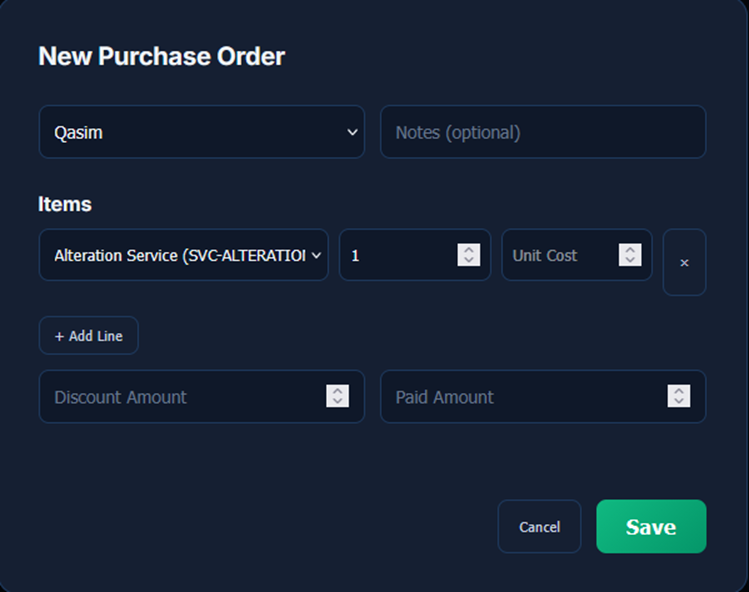
The New Purchase Order interface provides a streamlined form to compile and commit procurement orders against suppliers. It captures essential vendor details, line-item itemizations, supplier memos, and initial settlement figures to update inventory records and vendor payable balances simultaneously.
Features
1. Header & Vendor Assignment
· Modal Heading: Prominently presents the active form title (New Purchase Order).
· Vendor Selector Dropdown: Menu selector (currently set to Qasim ⌵) allowing users to choose the target supplier from the registered vendor directory.
· Notes Input Field: Optional text box (Notes (optional)) to attach purchase memos, delivery terms, or consignment instructions.
2. Line Items Configuration (Items)
· Section Heading: Dedicated subtitle (Items) organizing dynamic product/service rows.
· Item / Service Selector: Dropdown menu to pick inventory items or service codes (e.g., Alteration
Service (SVC-ALTERATIO... ⌵).
· Quantity (Qty) Field: Numeric input box with increment/decrement stepper controls defaulting to 1.
· Unit Cost Field: Numeric input box with stepper controls (Unit Cost) to enter the agreed purchase price per unit.
· Remove Row Button: Action button with a cross symbol (×) to delete an unwanted line item from the purchase order.
· + Add Line CTA Button: Action button (+ Add Line) to append additional line items to the order.
3. Financial & Payment Parameters
· Discount Amount Field: Numeric input with stepper controls (Discount Amount) to deduct negotiated supplier discounts or trade promotions.
· Paid Amount Field: Numeric input with stepper controls (Paid Amount) to record advance deposits or immediate payments disbursed against the purchase order.
4. Modal Form Actions
· Cancel Button: Secondary dark button (Cancel) located at the bottom right to discard the draft order and dismiss the modal.
· Save CTA Button: Solid green primary action button (Save) to commit the purchase order, update stock quantities, and log the payable transaction into the supplier ledger.
Supplier Ledger Screen
Purpose
The Supplier Ledger interface serves as the primary statement-retrieval workspace in the Purchasing suite. It allows financial and inventory managers to isolate a specific vendor profile, load their consolidated transactional khata, audit credit vs. debit activity, and verify outstanding payable liabilities.
Features
1. Header Navigation & Purchasing Tab Switcher
· Module Heading: Prominently positions the overarching section title (Purchasing).
· Navigation View Tabs: Top right toggle buttons providing direct switching between key purchasing domains:
o Purchase Orders: Navigates to PO creation, status tracking, and fulfillment lists.
o Vendors: Switches to the supplier master directory and profile directory.
o Supplier Ledger: Active highlighted tab (Supplier Ledger) designating the current statement and khata viewer.
2. Ledger Query & Selection Controls
· Select Vendor Dropdown: Selector menu defaulting to (-- Select Vendor -- ⌵) to choose a specific registered vendor or supplier account from the database.
· Load Ledger CTA Button: Solid blue action button (Load Ledger) positioned next to the dropdown to fetch and render the supplier's detailed transactional history and balance statement.
Supplier Ledger Screen
Purpose
The Supplier Ledger interface serves as the primary statement-retrieval workspace in the Purchasing suite. It allows financial and inventory managers to isolate a specific vendor profile, load their consolidated transactional khata, audit credit vs. debit activity, and verify outstanding payable liabilities.
Features
1. Header Navigation & Purchasing Tab Switcher
· Module Heading: Prominently positions the overarching section title (Purchasing).
· Navigation View Tabs: Top right toggle buttons providing direct switching between key purchasing domains:
o Purchase Orders: Navigates to PO creation, status tracking, and fulfillment lists.
o Vendors: Switches to the supplier master directory and profile directory.
o Supplier Ledger: Active highlighted tab (Supplier Ledger) designating the current statement and khata viewer.
2. Ledger Query & Selection Controls
· Select Vendor Dropdown: Selector menu defaulting to (-- Select Vendor -- ⌵) to choose a specific registered vendor or supplier account from the database.
· Load Ledger CTA Button: Solid blue action button (Load Ledger) positioned next to the dropdown to fetch and render the supplier's detailed transacti

Purchase Orders Screen
Purpose
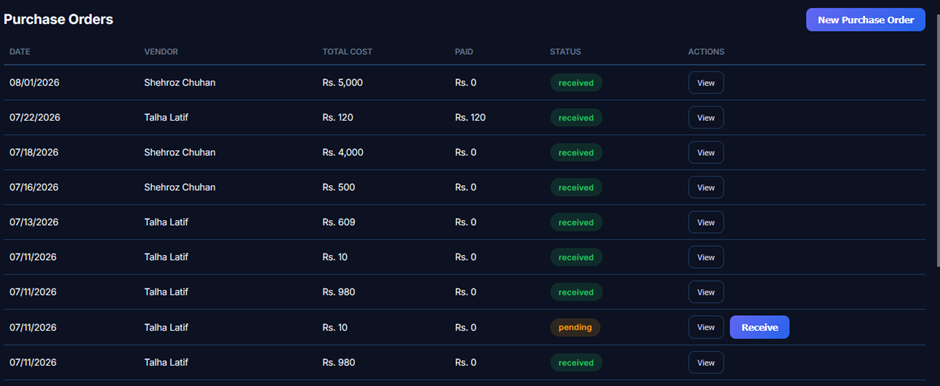
The Purchase Orders interface functions as the master tracking console for outgoing procurement tickets. It enables operational staff to monitor active supplier orders, verify payment allocations, inspect line-item details via ticket view modals, and mark pending shipments as received to automatically update inventory levels.
Features
1. Header Navigation & Procurement Actions
· Module Heading: Prominently positions the active section title (Purchase Orders).
· New Purchase Order CTA Button: Solid blue primary action button (New Purchase Order) located at the top right to launch the PO drafting wizard.
2. Master Purchase Orders Data-Grid
A structured, dark-themed tabular matrix detailing all logged supplier purchase orders:
· Tabular Columns:
o DATE: Date when the purchase order was generated (MM/DD/YYYY).
o VENDOR: Target supplier or contractor assigned to the order (e.g., Shehroz Chuhan, Talha Latif).
o TOTAL COST: Gross purchase value of the requisitioned items (e.g., Rs. 5,000, Rs. 120, Rs. 980).
o PAID: Advance or immediate payment disbursed against the order at the time of creation (e.g., Rs. 120, Rs. 0).
o STATUS: Dynamic, color-coded fulfillment badges:
§ received (Green Badge): Indicates the shipment has been verified and added to active inventory.
§ pending (Orange Badge): Indicates the purchase order is in transit or awaiting warehouse check-in.
o ACTIONS: Row-level operational controls:
§ View: Dark button to open the full purchase order ticket and inspect itemized rows and memos.
§ Receive: Prominent solid blue action button displayed exclusively on pending orders to confirm stock delivery and update inventory counts.
Inventory Screen
Purpose
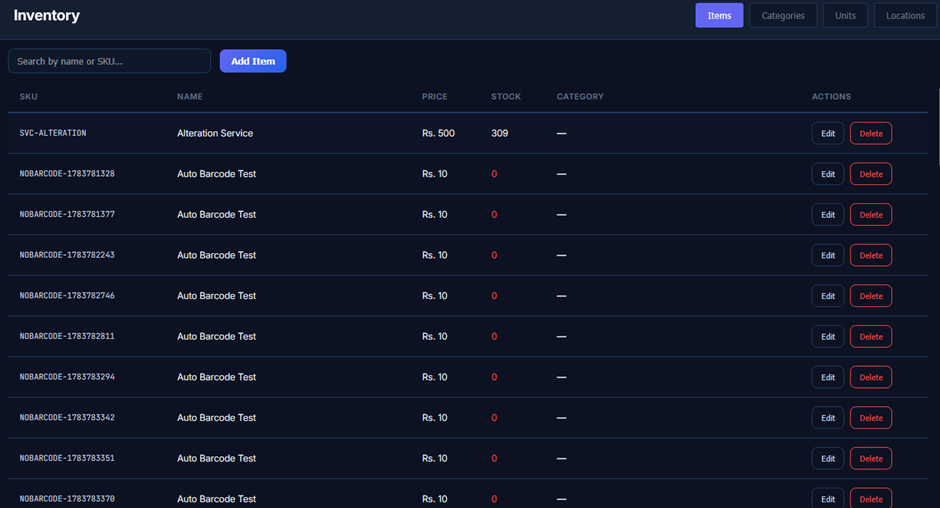
The Inventory interface functions as the master product catalog and real-time stock register. It enables operational staff to search inventory records, monitor stock levels (identifying low or out-of-stock items via color-coded alerts), onboard new merchandise or service items, and modify or delete existing catalog listings.
Features
1. Header Navigation & Sub-Module Tabs
· Module Heading: Prominently displays the active section title (Inventory).
· Navigation View Tabs: Top right toggle controls providing fast switching across inventory configuration domains:
o Items: Active highlighted tab (Items) displaying the main product list.
o Categories: Navigates to item category classification and groupings.
o Units: Manages measurement units (e.g., Pcs, Kg, Packs).
o Locations: Configures multi-store branches, warehouses, or storage sections.
2. Search & Item Provisioning Controls
· Search Input Field: Search box (Search by name or SKU...) designed for quick item lookups by name, barcode, or SKU identifier.
· Add Item CTA Button: Solid blue primary action button (Add Item) to launch the item creation modal.
3. Master Inventory Data-Grid
A structured, dark-themed tabular matrix detailing all cataloged products and services:
· Tabular Columns:
o SKU: Unique Stock Keeping Unit identifier or barcode reference (e.g., SVC-ALTERATION, NOBARCODE-1783781328).
o NAME: Display title of the product or service (e.g., Alteration Service, Auto Barcode Test).
o PRICE: Active retail selling price formatted in local currency (e.g., Rs. 500, Rs. 10).
o STOCK: Real-time on-hand stock count:
§ White Text: Available stock in sufficient quantity (e.g., 309).
§ Red Text: Out-of-stock or zero inventory indicator (0).
o CATEGORY: Assigned product category (— if unassigned).
o ACTIONS: Row-level product management buttons:
§ Edit: Opens the product editor to update prices, barcodes, categories, or descriptions.
§ Delete: Removes the item from the active catalog.
Add Item Screen
Purpose
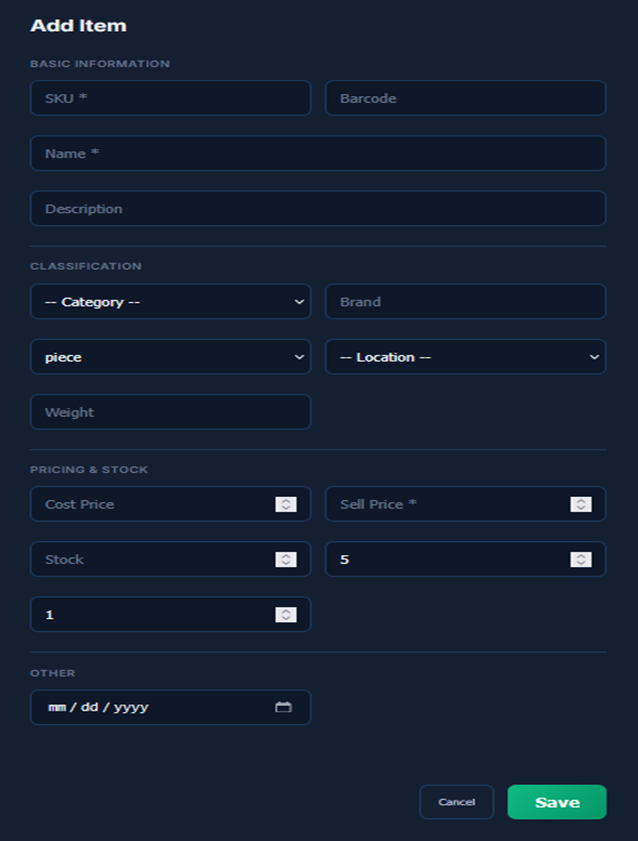
The Add Item modal provides a structured intake form to register new merchandise, finished goods, or service offerings. It captures comprehensive product metadata, storage locations, pricing margins, and threshold alerts, making items immediately available for purchasing, stock auditing, and point-of-sale checkout.
Features
1. Form Header
· Modal Title: Clearly displays the active action title (Add Item).
2. Basic Information Section (BASIC INFORMATION)
· SKU Field: Mandatory text input (SKU *) to assign a unique Stock Keeping Unit identifier.
· Barcode Field: Text input (Barcode) to link a physical barcode or scanner code.
· Name Field: Mandatory text input (Name *) to define the official product/service name.
· Description Field: Multiline text field (Description) for detailed item notes, ingredients, or specifications.
3. Classification Section (CLASSIFICATION)
· Category Selector: Dropdown menu defaulting to (-- Category -- ⌵) to assign the product to a specific inventory group.
· Brand Field: Text input (Brand) to record the manufacturer or label.
· Unit of Measure Selector: Dropdown menu defaulting to piece ⌵ to define packaging or billing units (e.g., piece, pack, kg).
· Location Selector: Dropdown menu defaulting to (-- Location -- ⌵) to assign the item to a specific warehouse, shelf, or store branch.
· Weight Field: Text input (Weight) to record item mass or shipping weight.
4. Pricing & Stock Section (PRICING & STOCK)
· Cost Price Field: Numeric input with increment/decrement steppers (Cost Price) to record the procurement or production cost.
· Sell Price Field: Mandatory numeric input with steppers (Sell Price *) to set the standard retail selling price.
· Stock Field: Numeric input with steppers (Stock) to enter the opening on-hand inventory count.
· Min Stock / Alert Level Field: Numeric input pre-filled with 5 to establish minimum inventory reorder thresholds.
· Reorder / Pack Quantity Field: Numeric input pre-filled with 1 to specify standard batch or replenishment increments.
5. Other Parameters Section (OTHER)
· Date Field: Calendar date-picker input (mm / dd / yyyy ) to log expiry dates, manufacturing dates, or intake timestamps.
6. Modal Form Actions
· Cancel Button: Secondary dark button (Cancel) to dismiss the modal and discard uncommitted inputs.
· Save CTA Button: Solid green primary action button (Save) to validate all fields, register the item into the database, and make it available across POS and procurement modules.
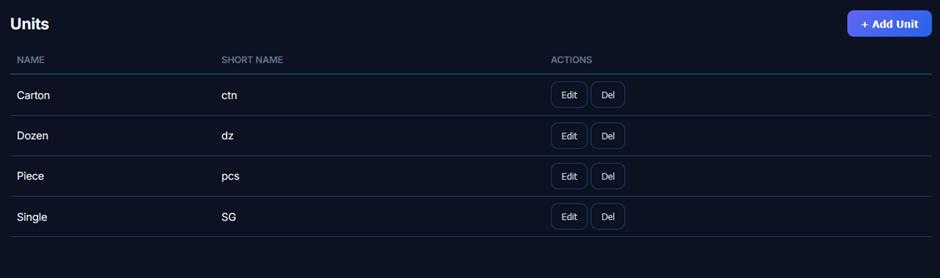
Units Screen
Purpose
The Units screen provides a centralized directory of all active units of measurement. It allows operational staff to view standard unit labels, review corresponding abbreviation codes (short names), create new measurement units, and update or delete existing definitions.
Features
1. Header Navigation & Unit Provisioning
· Module Heading: Prominently positions the active section title (Units).
· + Add Unit CTA Button: Solid purple primary action button (+ Add Unit) located at the top right to open the unit creation modal.
2. Master Units Data-Grid
A structured, dark-themed tabular matrix detailing all configured units of measurement:
· Tabular Columns:
o NAME: Full descriptive title of the measurement unit (e.g., Carton, Dozen, Piece, Single).
o SHORT NAME: Standardized symbol or abbreviation code displayed across POS terminals, receipts, and purchase orders (e.g., ctn, dz, pcs, SG).
o ACTIONS: Dedicated row-level management triggers:
§ Edit: Opens the configuration modal to modify the unit name or short code.
§ Del: Deletes the unit from the active registry.
Categories Screen
Purpose
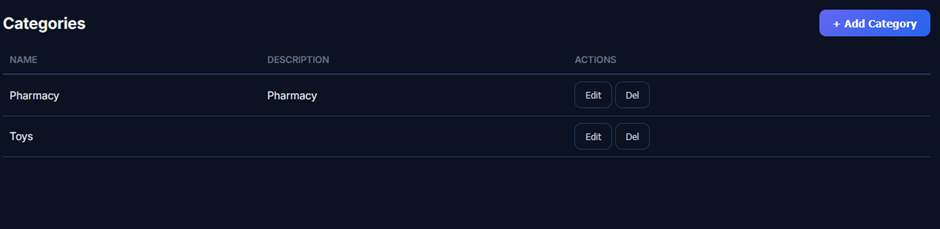
The Categories screen functions as the central registry for managing product classifications. It allows operational staff to view active category heads, inspect descriptive annotations, provision new product categories, and modify or delete existing entries.
Features
1. Header Navigation & Category Provisioning
· Module Heading: Prominently positions the active section title (Categories).
· + Add Category CTA Button: Solid purple primary action button (+ Add Category) located at the top right to open the creation modal.
2. Master Item Categories Data-Grid
A structured, dark-themed tabular matrix detailing all configured inventory categories:
· Tabular Columns:
o NAME: Primary title or display label of the inventory category (e.g., Pharmacy, Toys).
o DESCRIPTION: Contextual note or departmental scope explaining the category's contents (e.g., Pharmacy, or unrecorded empty state).
o ACTIONS: Dedicated row-level management triggers:
§ Edit: Opens the editor dialog to modify category titles or descriptive details.
§ Del: Deletes the category from the active registry.
Categories Screen
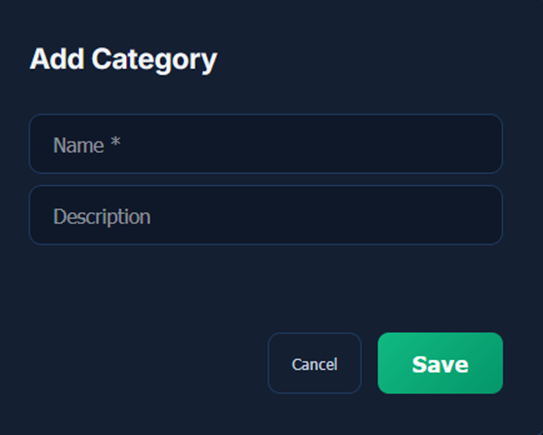
Purpose
The Categories screen functions as the central registry for managing product classifications. It allows operational staff to view active category heads, inspect descriptive annotations, provision new product categories, and modify or delete existing entries.
Features
1. Header Navigation & Category Provisioning
· Module Heading: Prominently positions the active section title (Categories).
· + Add Category CTA Button: Solid purple primary action button (+ Add Category) located at the top right to open the creation modal.
2. Master Item Categories Data-Grid
A structured, dark-themed tabular matrix detailing all configured inventory categories:
· Tabular Columns:
o NAME: Primary title or display label of the inventory category (e.g., Pharmacy, Toys).
o DESCRIPTION: Contextual note or departmental scope explaining the category's contents (e.g., Pharmacy, or unrecorded empty state).
o ACTIONS: Dedicated row-level management triggers:
§ Edit: Opens the editor dialog to modify category titles or descriptive details.
§ Del: Deletes the category from the active registry.
Locations Screen
Purpose
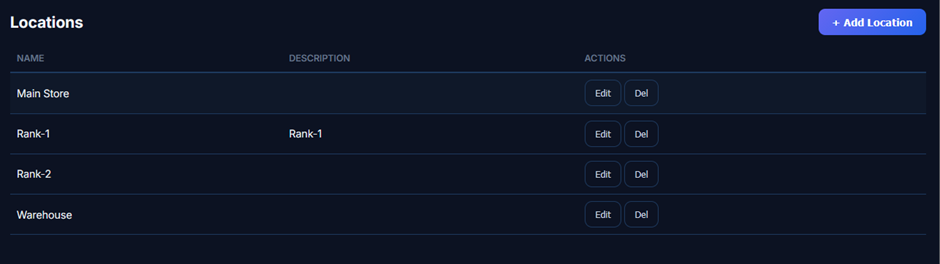
The Locations screen functions as the central registry for managing physical and logical stock storage locations. It allows operational teams to review active storage nodes, inspect contextual location descriptions, onboard new storage areas, and edit or delete existing location records.
Features
1. Header Navigation & Location Provisioning
· Module Heading: Prominently displays the active section title (Locations).
· + Add Location CTA Button: Solid purple primary action button (+ Add Location) located at the top right to open the location creation form.
2. Master Locations Data-Grid
A structured, dark-themed tabular matrix detailing all configured inventory locations:
· Tabular Columns:
o NAME: Official label of the storage location or section (e.g., Main Store, Rank-1, Rank-2, Warehouse).
o DESCRIPTION: Contextual note or identifying metadata detailing the storage area (e.g., Rank-1, or unrecorded empty state).
o ACTIONS: Dedicated row-level management triggers:
§ Edit: Opens the location editor to update titles or descriptive details.
§ Del: Removes the storage location from the active system registry.
Add Location Modal Screen
Purpose
The Add Location modal provides a streamlined intake interface to register new storage zones and stock holding locations into the system. Capturing location titles and optional descriptive details ensures products can be mapped to specific areas during item intake, transfers, and inventory audits.
Features
1. Form Header
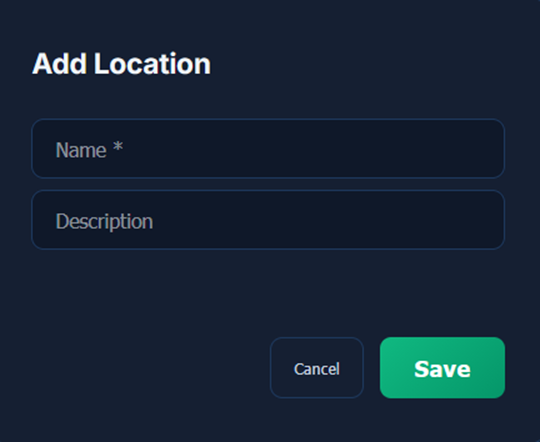
· Modal Title: Displays the active modal form heading (Add Location).
2. Input Fields
· Name Field: Mandatory text input (Name *) to define the primary label of the storage zone (e.g., Main Store, Rack-1, Warehouse).
· Description Field: Single or multiline text input box (Description) to record aisle numbers, storage capacity, or specific departmental notes.
3. Modal Form Actions
· Cancel Button: Secondary dark action button (Cancel) positioned at the bottom right to dismiss the modal and discard uncommitted changes.
· Save CTA Button: Solid green primary action button (Save) to validate input fields, save the location into the database, and make it selectable across inventory management and product setup screens.
Discounts & Promotions Screen
Purpose
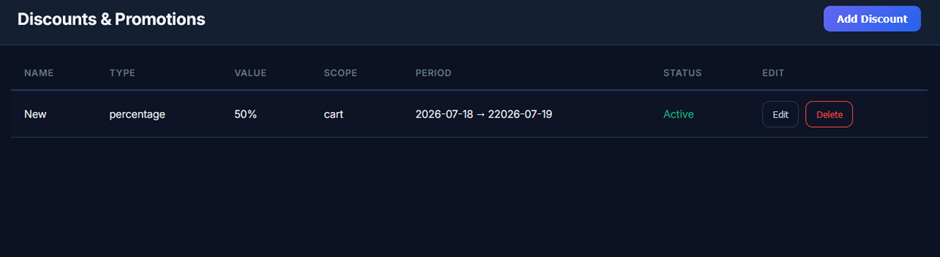
The Discounts & Promotions screen provides a centralized dashboard to manage and audit promotional pricing rules. It allows operational staff to monitor active discounts, review campaign timelines and scopes, launch new promotional incentives, and update or remove existing promotional configurations.
Features
1. Header Navigation & Campaign Provisioning
· Module Heading: Prominently positions the active section title (Discounts & Promotions).
· Add Discount CTA Button: Solid blue primary action button (Add Discount) located at the top right to open the discount rule creation modal.
2. Master Discounts & Promotions Data-Grid
A structured, dark-themed tabular matrix detailing all configured promotional rules:
· Tabular Columns:
o NAME: Identifying title or campaign label (e.g., New).
o TYPE: Calculation structure applied to the discount (e.g., percentage, fixed amount).
o VALUE: Exact markdown rate or amount applied (e.g., 50%).
o SCOPE: Target level where the discount executes (e.g., cart for entire order totals, or specific line items/categories).
o PERIOD: Active date range and scheduling window (YYYY-MM-DD → YYYY-MM-DD, e.g., 2026-07-18 → 22026-07-19).
o STATUS: Dynamic operational status indicator:
§ Active (Green Text): Denotes an ongoing and currently applied promotional rule.
o EDIT: Dedicated row-level management triggers:
§ Edit: Opens the configuration editor to adjust discount values, periods, or scope rules.
§ Delete: Red-bordered button to remove the promotion from the active rules engine.
Add Discount Modal Screen
Purpose
The Add Discount modal provides a structured intake interface to define and deploy promotional pricing rules. It captures essential campaign parameters—such as discount type, rate values, eligibility criteria, and validity periods—ensuring automated discount calculation at point-of-sale checkout while protecting profit margins.
Features
1. Form Header
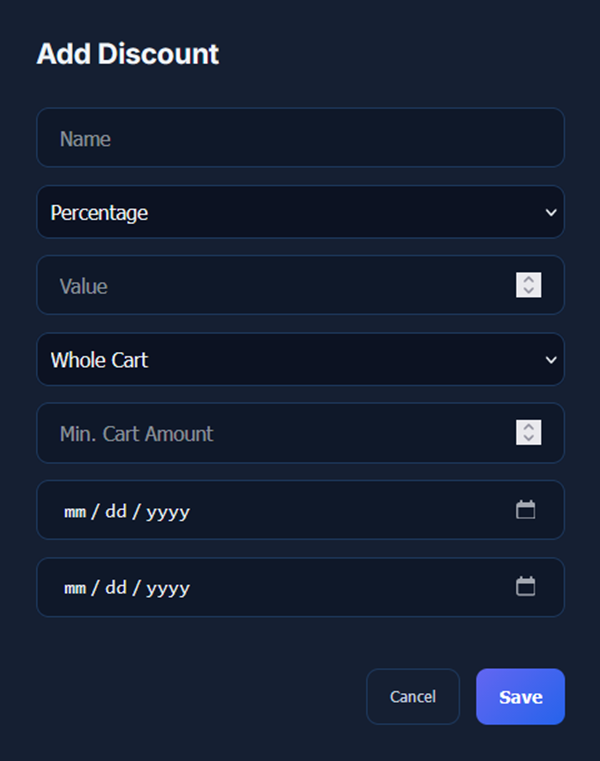
· Modal Title: Prominently positions the active form heading (Add Discount).
2. Promotional Configuration Fields
· Name Field: Text input box (Name) to assign an internal label or campaign title (e.g., Summer Clearance, VIP Member Discount).
· Discount Type Selector: Dropdown selector defaulting to Percentage ⌵ to choose between percentage-based or flat-rate deductions.
· Value Field: Numeric input box with increment/decrement stepper controls (Value) to specify the discount rate (e.g., percentage value or currency amount).
· Scope Selector: Dropdown menu defaulting to Whole Cart ⌵ to establish the target application level (e.g., Whole Cart, specific categories, or individual items).
· Min. Cart Amount Field: Numeric input box with stepper controls (Min. Cart Amount) to define the minimum order subtotal required to unlock the promotion.
3. Campaign Scheduling & Validity
· Start Date Field: Calendar date-picker input (mm / dd / yyyy ) to set the effective launch date of the promotional rule.
· End Date Field: Calendar date-picker input (mm / dd / yyyy ) to define the expiry date for automatic campaign deactivation.
4. Modal Form Actions
· Cancel Button: Secondary dark action button (Cancel) to dismiss the modal and discard uncommitted inputs.
· Save CTA Button: Solid blue primary action button (Save) to validate inputs, store the promotion in the active rules engine, and enable automated application at checkout.
User Management Screen
Purpose
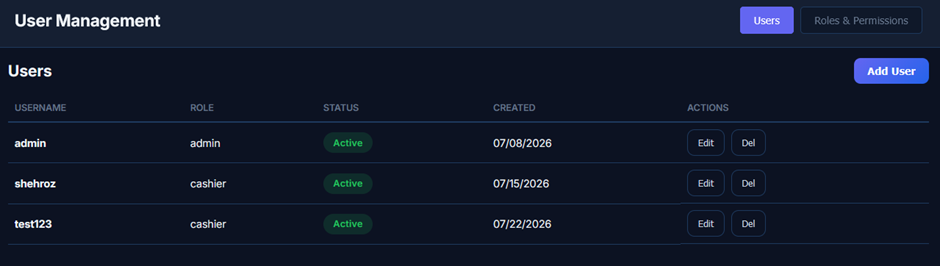
The Users screen functions as the central management console for staff credentials and access privileges. It provides an immediate overview of all active platform operators, their assigned system roles, onboarding timelines, and row-level modification triggers.
Features
1. Header Navigation & Sub-Module View Switcher
· Module Heading: Prominently positions the active domain title (User Management).
· Navigation View Tabs: Top right tab switcher enabling direct navigation across security sub-modules:
o Users: Active highlighted button (Users) displaying the staff user list.
o Roles & Permissions: Navigates to granular permission matric sets and authorization rule setups.
2. Section Header & User Provisioning
· Section Title: Bold subtitle (Users) designating the active registry table.
· Add User CTA Button: Solid blue primary action button (Add User) located at the top right to open the user registration wizard.
3. Master Users Directory Data-Grid
A structured, dark-themed tabular matrix detailing all registered system operators:
· Tabular Columns:
o USERNAME: Unique login identifier or handle assigned to the user account (e.g., admin, shehroz, test123).
o ROLE: Assigned operational privilege level (e.g., admin, cashier).
o STATUS: Dynamic operational account status badge:
§ Active (Green Badge): Denotes an active, authorized user account able to authenticate into the system.
o CREATED: Date of account creation/onboarding formatted as MM/DD/YYYY (e.g., 07/08/2026, 07/15/2026, 07/22/2026).
o ACTIONS: Dedicated row-level administrative controls:
§ Edit: Dark button to update user details, role assignments, or reset passwords.
§ Del: Dark button to delete or revoke the user account.
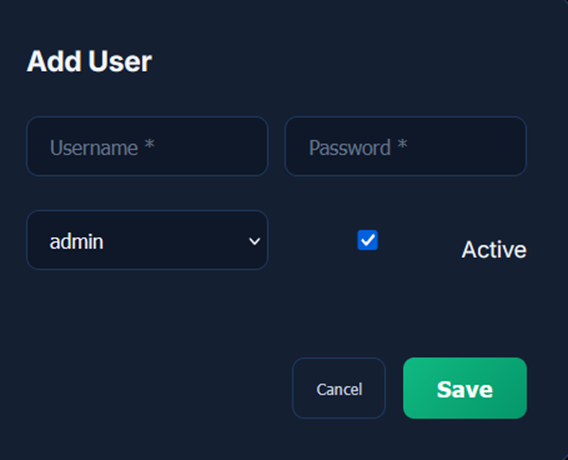
Add User Modal Screen
Purpose
The Add User modal provides a streamlined intake dialog to onboard new system operators into the application database. It captures essential authentication credentials, assigns appropriate authorization levels (such as Admin or Cashier), and designates the account status to ensure secure, role-restricted access.
Features
1. Form Header
· Modal Title: Displays the active modal form heading (Add User).
2. Authentication & Access Fields
· Username Field: Mandatory text input (Username *) to assign a unique system login handle.
· Password Field: Mandatory password input (Password *) to establish secure initial login credentials.
· Role Selector Dropdown: Dropdown menu defaulting to admin ⌵ to assign the user's operational role and authorization privileges (e.g., admin, cashier).
· Active Status Checkbox: Checkbox control (checked by default with a blue indicator) labeled Active to determine whether the user account is immediately enabled for system authentication.
3. Modal Form Actions
· Cancel Button: Secondary dark action button (Cancel) positioned at the bottom right to discard entered data and close the modal.
· Save CTA Button: Solid green primary action button (Save) to validate credentials, create the user profile, and commit the record to the system directory.
Roles & Permissions Screen
Purpose
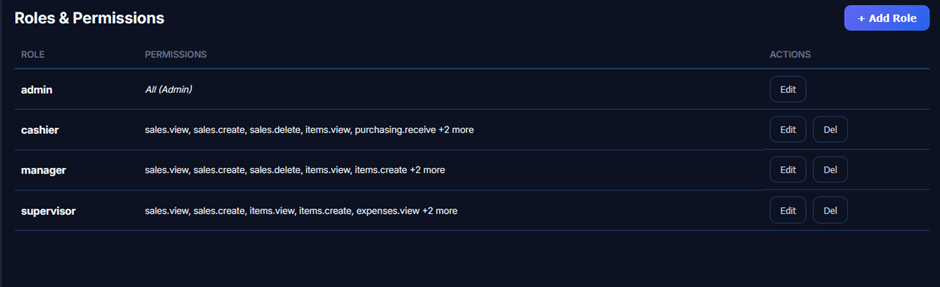
The Roles & Permissions screen provides a centralized directory for defining and auditing access privileges. It allows system administrators to review granted permission scopes for each role, create custom role profiles, and modify or revoke existing operational roles.
Features
1. Header Navigation & Role Provisioning
· Module Heading: Prominently displays the active section title (Roles & Permissions).
· + Add Role CTA Button: Solid purple primary action button (+ Add Role) located at the top right to open the role creation and permission mapping modal.
2. Master Roles & Permissions Data-Grid
A structured, dark-themed tabular matrix detailing all configured system roles and their assigned access scopes:
· Tabular Columns:
o ROLE: System title or designation assigned to the profile (e.g., admin, cashier, manager, supervisor).
o PERMISSIONS: Comma-separated list of granular permission strings specifying enabled capabilities:
§ All (Admin): Full unrestricted super-admin privileges.
§ sales.view, sales.create, sales.delete, items.view, purchasing.receive +2 more (Cashier)
§ sales.view, sales.create, sales.delete, items.view, items.create +2 more (Manager)
§ sales.view, sales.create, items.view, items.create, expenses.view +2 more (Supervisor)
o ACTIONS: Dedicated row-level management triggers:
§ Edit: Opens the permission matrix editor to adjust assigned capability scopes.
§ Del: Deletes custom operational roles (disabled/hidden for the master admin role to prevent system lockout).
Add Role Modal Screen
Purpose
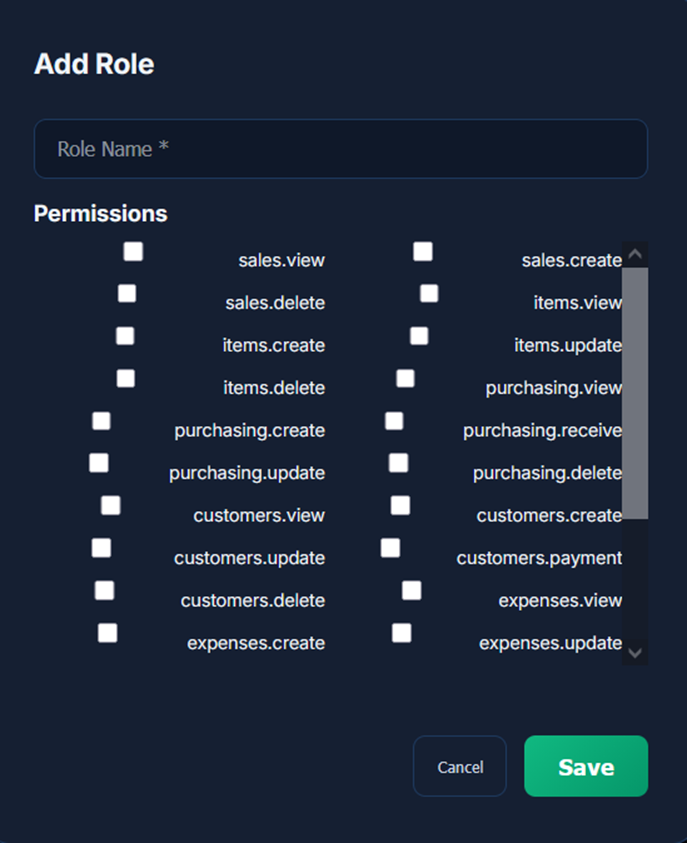
The Add Role modal provides an interactive checkbox matrix to configure new operational roles and map granular system capabilities. It allows administrators to define a role name and select explicit permission scopes across all ERP functional modules before provisioning the role to staff users.
Features
1. Form Header
· Modal Title: Displays the active modal form heading (Add Role).
2. Role Identification
· Role Name Field: Mandatory text input (Role Name *) to assign the title or organizational designation for the new role (e.g., Cashier, Inventory Supervisor, Auditor).
3. Granular Permissions Matrix (Permissions)
· Section Heading: Dedicated subtitle (Permissions) organizing the selectable capability scopes.
· Scrollable Two-Column Permission Checklist: Interactive checkboxes grouped by domain:
o Sales Operations:
§ sales.view – Access and review sales orders and history.
§ sales.create – Generate new sales orders and invoices.
§ sales.delete – Void or delete existing sales transactions.
o Item & Inventory Management:
§ items.view – View catalog products, prices, and stock levels.
§ items.create – Add new merchandise or services to the catalog.
§ items.update – Edit product pricing, descriptions, and SKU details.
§ items.delete – Remove items from the master catalog.
o Purchasing & Restocking:
§ purchasing.view – View purchase orders and vendor procurement lists.
§ purchasing.create – Draft and issue new supplier purchase orders.
§ purchasing.receive – Receive inbound inventory shipments and update stock.
§ purchasing.update – Modify existing purchase order parameters.
§ purchasing.delete – Cancel or remove purchase orders.
o Customer & Accounts Receivable:
§ customers.view – View customer directories and contact lists.
§ customers.create – Register new customer accounts.
§ customers.update – Edit customer profiles and credit parameters.
§ customers.payment – Record and disburse customer receipts and payments.
§ customers.delete – Delete customer accounts.
o Expense Tracking:
§ expenses.view – Audit operational overheads and logged expenses.
§ expenses.create – Record new business expenses.
§ expenses.update – Edit expense voucher entries.
4. Modal Form Actions
· Cancel Button: Secondary dark action button (Cancel) positioned at the bottom right to discard uncommitted changes and close the modal.
· Save CTA Button: Solid green primary action button (Save) to validate entries, create the custom role profile, and make it available across user onboarding screens.
Day Summary Screen
Purpose
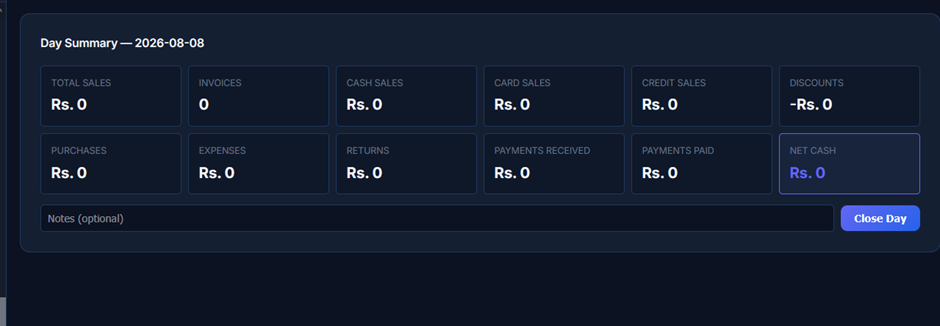
The Day Summary interface serves as the primary workspace for executing end-of-day register audits. It compiles all daily transactions into structured metric cards, computes net cash balances, allows shift notes to be attached, and provides a final settlement action to close the operational day.
Features
1. Header & Active Date
· Module Heading: Displays the active summary header along with the operating date timestamp (Day Summary — 2026-08-08).
2. Key Financial & Operational Metric Cards
A structured, dark-themed metric grid breaking down daily financial performance:
· Top Row Metrics (Sales & Volumes):
o TOTAL SALES: Aggregate gross sales generated during the day (Rs. 0).
o INVOICES: Total count of completed customer transaction receipts (0).
o CASH SALES: Cumulative volume of cash transactions collected at checkout (Rs. 0).
o CARD SALES: Total electronic card and POS terminal transactions processed (Rs. 0).
o CREDIT SALES: Value of items sold on customer credit/receivable accounts (Rs. 0).
o DISCOUNTS: Total promotional markdowns or discounts deducted (-Rs. 0).
· Bottom Row Metrics (Outflows & Settlements):
o PURCHASES: Procurement costs and supplier invoice totals incurred (Rs. 0).
o EXPENSES: Operational overheads and petty cash expenses recorded (Rs. 0).
o RETURNS: Value of items refunded or returned to store inventory (Rs. 0).
o PAYMENTS RECEIVED: Debt clearances, customer balance settlements, or advance collections (Rs. 0).
o PAYMENTS PAID: Disbursements made to vendors, suppliers, or external parties (Rs. 0).
o NET CASH: Prominently framed summary card showing the final net physical cash balance (Rs. 0).
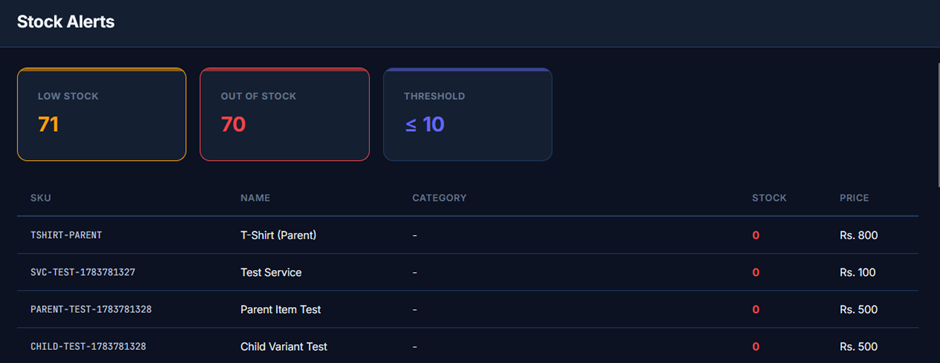
Stock Alerts Screen
Purpose
The Stock Alerts screen provides a centralized monitoring dashboard for identifying inventory items that have breached designated reorder limits or reached zero inventory. It summarizes low-stock and out-of-stock counts and displays an actionable register of affected items alongside current retail valuations.
Features
1. Header Navigation
· Module Heading: Prominently positions the active section title (Stock Alerts).
2. Key Inventory Alert Metric Cards
A row of color-coded KPI cards summarizing current inventory risk levels:
· LOW STOCK Card (Yellow/Amber Accent): Displays the total count of inventory items operating below the defined safety threshold (71).
· OUT OF STOCK Card (Red Accent): Highlights the total number of items currently sitting at zero on-hand quantity (70).
· THRESHOLD Card (Blue Accent): Indicates the active benchmark rule triggering low-stock warnings (≤ 10).
3. Master Stock Alerts Data-Grid
A structured, dark-themed tabular matrix detailing products requiring immediate replenishment:
· Tabular Columns:
o SKU: Unique Stock Keeping Unit or system identifier (e.g., TSHIRT-PARENT, SVC-TEST-1783781327).
o NAME: Item or variant title (e.g., T-Shirt (Parent), Test Service, Parent Item Test, Child Variant Test).
o CATEGORY: Assigned product grouping or taxonomy (- if unassigned).
o STOCK: Current on-hand quantity highlighted in Red to signal critical shortage or zero stock (0).
o PRICE: Active retail selling price formatted in local currency (e.g., Rs. 800, Rs. 100, Rs. 500).
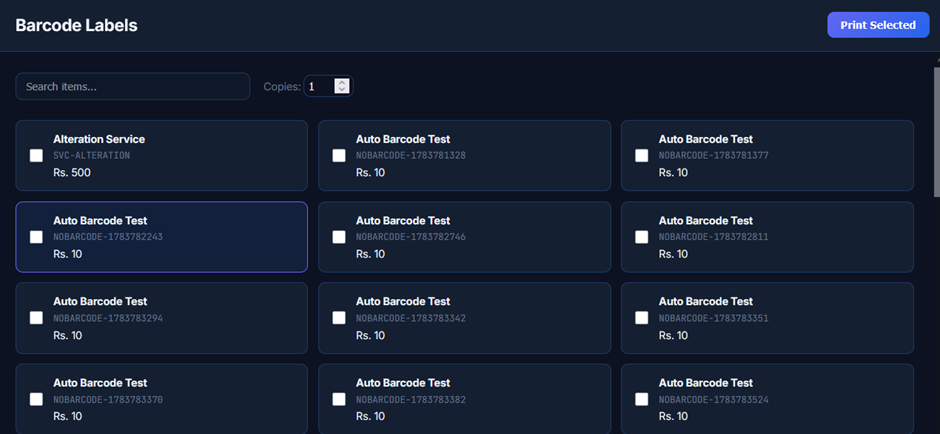
Barcode Labels Screen
Purpose
The Barcode Labels interface provides a visual batch-selection workspace for printing physical barcode stickers. It allows operational staff to quickly filter merchandise by name or SKU, choose specific products via checkboxes, specify the number of copies required per label, and send them directly to thermal or standard label printers.
Features
1. Header Navigation & Print Actions
· Module Heading: Prominently positions the active section title (Barcode Labels).
· Print Selected CTA Button: Solid purple primary action button (Print Selected) located at the top right to execute the batch print job for all checked items.
2. Search & Print Copy Controls
· Search Input Field: Search box (Search items...) to quickly filter and locate specific merchandise by product title or SKU identifier.
· Copies Field: Numeric input box with increment/decrement stepper controls (Copies:
1) to set the number of label copies generated per selected product.
3. Item Selection Card Grid
A multi-column, dark-themed responsive card grid displaying selectable catalog items:
· Item Card Elements:
o Selection Checkbox: Square toggle box on each card allowing individual or multi-item selection for printing.
o Product Name: Primary display title of the merchandise or service (e.g., Alteration Service, Auto Barcode Test).
o SKU / Barcode Code: Unique alphanumeric identifier or generated barcode string (e.g., SVC-ALTERATION, NOBARCODE-1783781328, NOBARCODE-1783782243).
o Price Label: Retail selling price formatted in local currency (e.g., Rs. 500, Rs. 10).
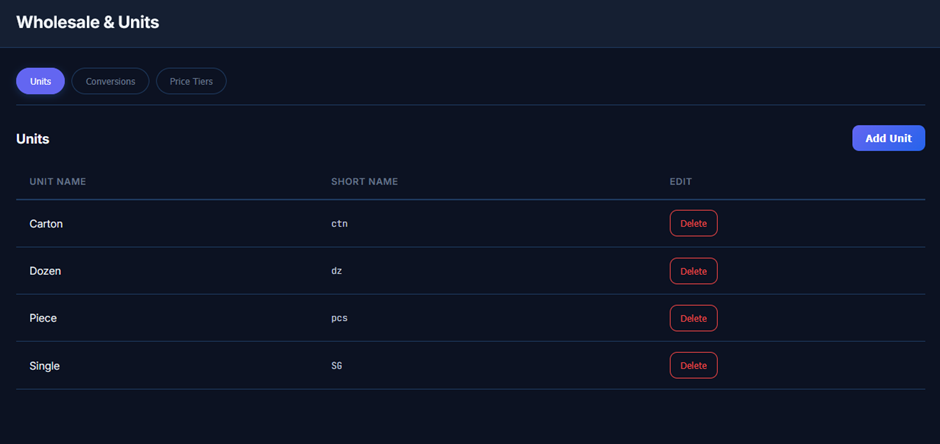
Wholesale & Units Screen
Purpose
The Wholesale & Units interface provides a centralized workspace for managing measurement standards used across wholesale distribution and retail inventory. It allows operational staff to navigate between unit listings, conversion matrices, and tiered pricing structures, while managing registered unit records and abbreviations.
Features
1. Header Navigation & Sub-Module View Switcher
· Module Heading: Prominently positions the overarching domain title (Wholesale & Units).
· Navigation View Tabs: Top left toggle buttons providing instant switching between wholesale management sub-modules:
o Units: Active highlighted button (Units) displaying the primary unit registry.
o Conversions: Switches to unit conversion formulas and ratio mappings (e.g., pieces per carton).
o Price Tiers: Navigates to volume-based and customer-tier wholesale pricing matrices.
2. Section Header & Unit Creation
· Section Subtitle: Displays the active registry title (Units).
· Add Unit CTA Button: Solid blue primary action button (Add Unit) located on the right to open the unit creation modal.
3. Master Units Data-Grid
A structured, dark-themed tabular matrix detailing all configured wholesale and retail measurement units:
· Tabular Columns:
o UNIT NAME: Full descriptive name of the measurement unit (e.g., Carton, Dozen, Piece, Single).
o SHORT NAME: Standardized abbreviation or code used on wholesale invoices, packing slips, and inventory screens (e.g., ctn, dz, pcs, SG).
o EDIT: Row-level action controls:
§ Delete: Red-bordered dark button to remove a unit from the active registry.
Daily/Monthly Sales Report Screen
Purpose
The Daily/Monthly Sales interface functions as a consolidated analytics dashboard aggregating multi-channel transaction metrics, operational cash flows, expense breakdowns, and top-selling product performances over a specified date range.
Features
1. Header Controls & Date Filtering
· Module Title: Displays the overarching section title (Reports).
· Date Range Selector: Dual date-picker inputs (08 / 01 / 2026 to 08 / 08 / 2026 ) to define the reporting analysis window.
· Refresh CTA Button: Solid blue primary button (Refresh) to recalculate and update all dashboard metrics.
2. Navigation Sidebar
A comprehensive, categorized reporting sidebar organized into functional domains:
· SALES REPORTS:
o Daily/Monthly Sales (Active Selection)
o Invoice Wise Sales
o Item Wise Sales
o Category Wise Sales
o Customer Wise Sales
o Cashier Wise Sales
o Payment Method Wise
o Profit & Loss
o Discount Report
o Sales Return Report
o Day Closing Report
· PURCHASE REPORTS:
o Item Wise Purchase
o Category Wise Purchase
o Supplier Wise Purchase
o Purchase Returns
o Purchase Payments
· INVENTORY REPORTS:
o Current Stock / Valuation
o Low Stock Report
o Out of Stock
o Expiry Report
· CUSTOMER REPORTS:
o Customer List
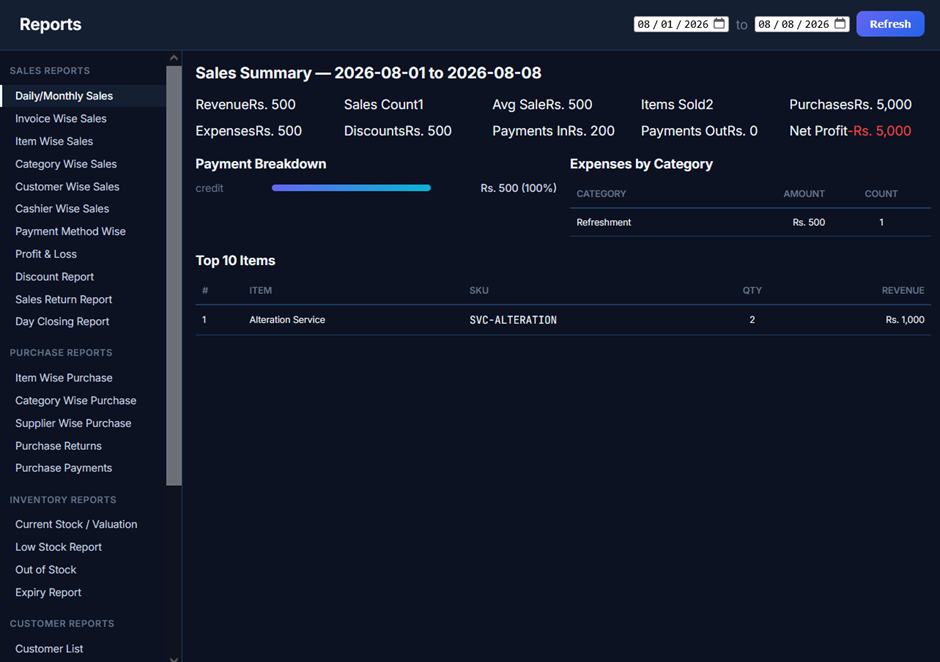
Chart of Accounts Screen
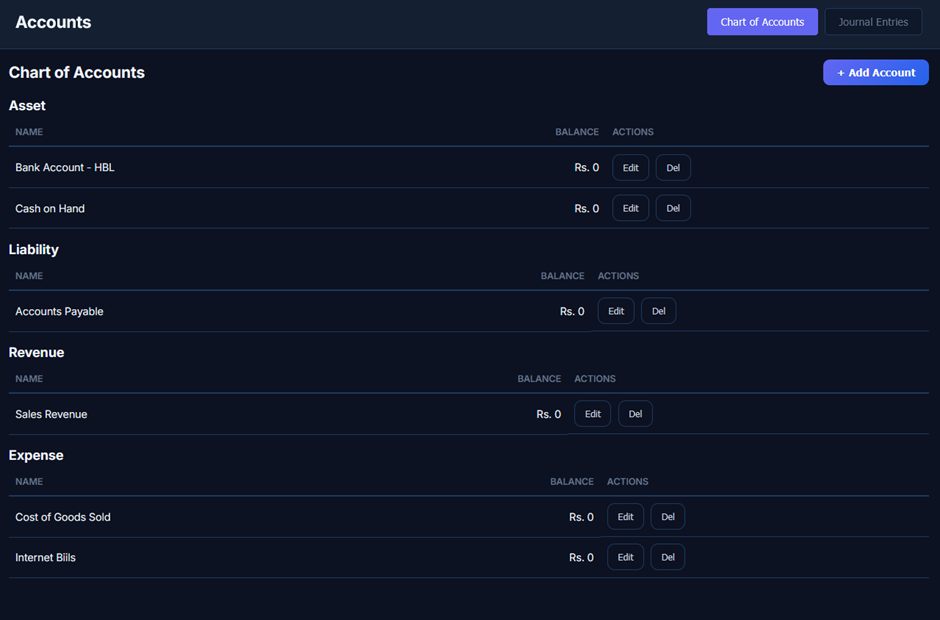
Purpose
The Chart of Accounts screen functions as the master accounting ledger directory. It enables finance personnel to monitor real-time ledger balances across primary financial categories, review account allocations, onboard new ledger accounts, and manage or update existing account mappings.
Features
1. Header Navigation & Sub-Module Tabs
· Module Title: Prominently positions the overarching domain title (Accounts).
· Navigation View Tabs: Top right tab toggle controls allowing fast navigation between accounting sub-modules:
o Chart of Accounts: Active highlighted button (Chart of Accounts) displaying the categorized ledger matrix.
o Journal Entries: Navigates to general journal postings, voucher creations, and debit/credit transaction logs.
2. Section Header & Account Creation
· Section Title: Bold subtitle (Chart of Accounts) designating the active ledger view.
· + Add Account CTA Button: Solid purple primary action button (+ Add Account) located at the top right to open the ledger account creation modal.
3. Categorized Account Ledgers Data-Grid
A structured, dark-themed accounting matrix divided by major financial classes:
· Asset Accounts:
o Displays capital resources, liquidity reserves, and bank holdings.
o Bank Account - HBL (Balance: Rs. 0)
o Cash on Hand (Balance: Rs. 0)
· Liability Accounts:
o Displays outstanding obligations, short-term debt, and trade payables.
o Accounts Payable (Balance: Rs. 0)
· Revenue Accounts:
o Tracks operational earnings, sales turnover, and primary income streams.
o Sales Revenue (Balance: Rs. 0)
· Expense Accounts:
o Records direct operating costs, cost of sales, and utility overheads.
o Cost of Goods Sold (Balance: Rs. 0)
o Internet Biils (Balance: Rs. 0)
4. Tabular Structure & Row Actions
· NAME: Official ledger account title.
· BALANCE: Real-time net account balance formatted in local currency (e.g., Rs. 0).
· ACTIONS: Dedicated row-level ledger management triggers:
o Edit: Dark button to modify account titles, classification groupings, or initial balance settings.
o Del: Dark button to delete or archive obsolete ledger accounts.
Journal Entries Screen
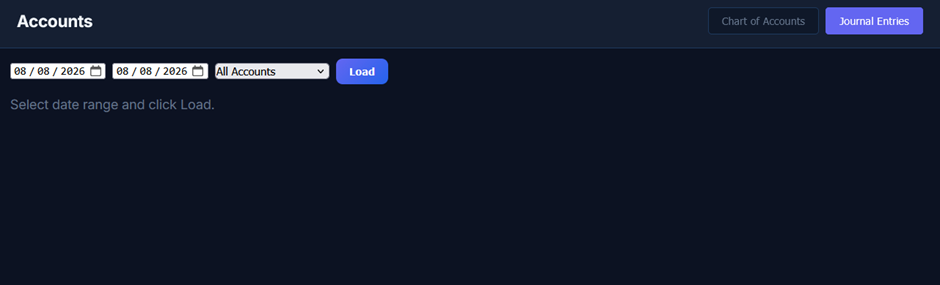
Purpose
The Journal Entries screen provides an interface to query and generate general journal transaction records. It enables operational staff to filter accounting activity by custom date ranges and specific ledger accounts to review transactional postings and audit balances.
Features
1. Header Navigation & Sub-Module View Switcher
· Module Heading: Prominently displays the overarching section title (Accounts).
· Navigation View Tabs: Top-right tab switcher enabling direct navigation across financial sub-modules:
o Chart of Accounts: Dark toggle button to navigate to the master ledger directory.
o Journal Entries: Active highlighted blue button (Journal Entries) displaying the journal entry filter console.
2. Query & Filter Controls
· Date Range Pickers: Dual date-selection fields formatted as MM / DD / YYYY (pre-filled with 08 / 08 / 2026 to 08 / 08 / 2026) to define the accounting window.
· Account Filter Dropdown: Select menu defaulting to All Accounts ⌵ to narrow results to a single ledger account or inspect all transactions simultaneously.
· Load CTA Button: Solid blue primary action button (Load) to execute the query and retrieve matching journal records.
3. Content State Area
· Prompt Notice: Helper text (Select date range and click Load.) displayed across the main workspace indicating an unexecuted or pending query state before data population.
Settings — Business Profile Screen
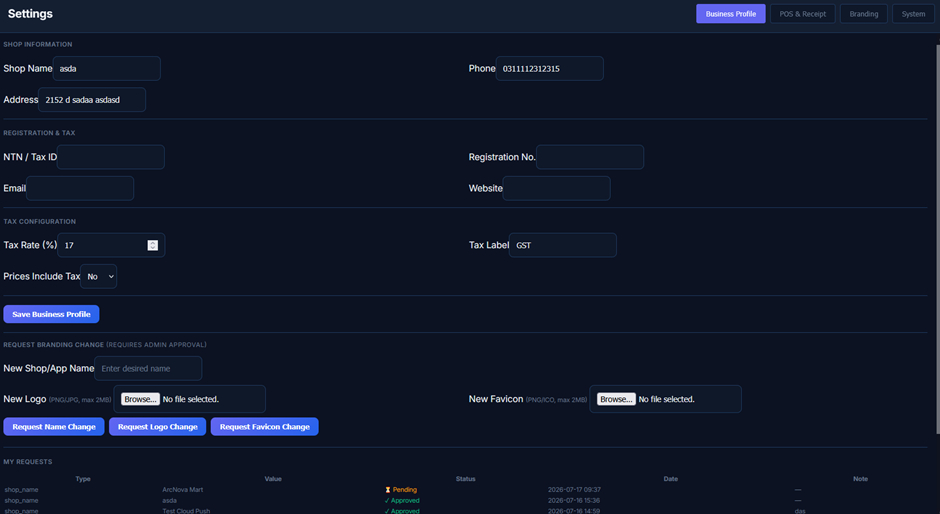
Purpose
The Business Profile settings screen allows operators to maintain primary store identity details, establish sales tax computation rules for checkout, and request tenant-level branding changes while auditing historical approval statuses.
Features
1. Header Navigation & Sub-Module View Switcher
· Module Heading: Prominently positions the overarching section title (Settings).
· Configuration View Tabs: Top right tab switcher enabling direct navigation across system preference areas:
o Business Profile: Active highlighted button (Business Profile) displaying store information, tax setup, and branding requests.
o POS & Receipt: Configures checkout terminal parameters, invoice templates, and printer formats.
o Branding: Adjusts interface theme presets and visual accents.
o System: Manages platform environment settings, database operations, and system maintenance.
2. Shop Information (SHOP INFORMATION)
· Shop Name Field: Text input (Shop Name) containing the registered commercial trading name (e.g., asda).
· Phone Field: Text input (Phone) storing the primary business contact number (e.g., 0311112312315).
· Address Field: Text input (Address) capturing the physical storefront or warehouse address (e.g., 2152 d sadaa asdasd).
3. Registration & Tax (REGISTRATION & TAX)
· NTN / Tax ID Field: Text input (NTN / Tax ID) to record the National Tax Number or corporate fiscal identifier.
· Registration No. Field: Text input (Registration No.) to capture the commercial business license or incorporation number.
· Email Field: Text input (Email) for corporate correspondence and digital receipt dispatch.
· Website Field: Text input (Website) for the store's public domain URL.
4. Tax Configuration (TAX CONFIGURATION)
· Tax Rate (%) Field: Numeric input with stepper controls (Tax Rate (%)) configured to a default percentage rate (e.g., 17).
· Tax Label Field: Text input (Tax Label) defining the tax nomenclature on receipts and invoices (e.g., GST).
· Prices Include Tax Selector: Dropdown menu defaulting to No ⌵ to determine whether item shelf prices are inclusive or exclusive of sales tax.
· Save Business Profile CTA Button: Solid blue action button (Save Business Profile) to commit and persist profile and tax configuration updates.
5. Request Branding Change (REQUEST BRANDING CHANGE)
Administrative approval workflow for tenant personalization:
· New Shop/App Name: Text input with placeholder (Enter desired name) paired with a Request Name Change submission button.
· New Logo: File upload selector (Browse... No file selected., PNG/JPG, max 2MB) paired with a Request Logo Change submission button.
· New Favicon: File upload selector (Browse... No file selected., PNG/ICO, max 2MB) paired with a Request Favicon Change submission button.
6. Branding Change Requests Audit Log (MY REQUESTS)
A structured log tracking historical branding submissions and their verification status:
· Columns:
o Type: Attribute requested for modification (e.g., shop_name).
o Value: Submitted new string or media value (e.g., ArcNova Mart, asda, Test
Cloud Push).
o Status: Dynamic lifecycle badge:
§ ⏳ Pending: Change request is queued for administrative review.
§ ✓ Approved: Change request has been verified and applied.
o Date: Timestamp of request submission formatted as YYYY-MM-DD HH:MM (e.g., 2026-07-17 09:37, 2026-07-16
15:36).
o Note: Contextual remarks or reviewer feedback (e.g., —, das).
Settings — POS & Receipt Screen
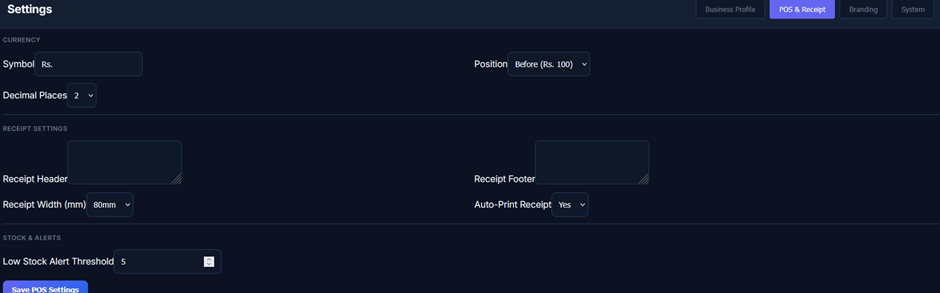
Purpose
The POS & Receipt settings interface provides a centralized control panel for tailoring checkout terminal behaviors and receipt printing formats. It ensures all sales invoices match local monetary conventions and hardware printing constraints while configuring global stock warning levels.
Features
1. Header Navigation & Sub-Module View Switcher
· Module Heading: Prominently positions the overarching section title (Settings).
· Navigation View Tabs: Top-right tab switcher enabling direct navigation across system preference areas:
o Business Profile: Configures business identity, tax numbers, and approval requests.
o POS & Receipt: Active highlighted blue button (POS & Receipt) displaying currency, receipt printing, and alert parameters.
o Branding: Adjusts interface theme presets and visual accents.
o System: Manages system-level logs, database configurations, and maintenance.
2. Currency Formatting (CURRENCY)
· Symbol Field: Text input (Symbol) specifying the active currency sign or abbreviation (e.g., Rs.).
· Position Selector: Dropdown menu defaulting to Before (Rs. 100) ⌵ to determine whether the currency symbol precedes or follows monetary amounts.
· Decimal Places Selector: Dropdown menu defaulting to 2 ⌵ to establish the precision of price and subtotal calculations.
3. Receipt Layout & Printing Parameters (RECEIPT SETTINGS)
· Receipt Header Field: Multiline expandable textarea (Receipt Header) to input custom top-of-ticket text (e.g., welcome messages, branch addresses, or return policies).
· Receipt Footer Field: Multiline expandable textarea (Receipt Footer) to input customized footer messages, thank-you notes, or barcode disclaimers.
· Receipt Width (mm) Selector: Dropdown menu defaulting to 80mm ⌵ to match standard thermal roll widths (e.g., 80mm, 58mm).
· Auto-Print Receipt Selector: Dropdown menu defaulting to Yes ⌵ to toggle automatic receipt dispatch to thermal printers immediately upon checkout completion.
4. Inventory Warnings & Thresholds (STOCK & ALERTS)
· Low Stock Alert Threshold Field: Numeric stepper input (Low Stock Alert
Threshold) defaulted to 5 to establish the system-wide threshold for flagging items in low-stock reports and warning banners.
5. Form Actions
· Save POS Settings CTA Button: Solid blue primary action button (Save POS Settings) located at the bottom left to commit all currency, printer, and inventory configuration changes to the database.
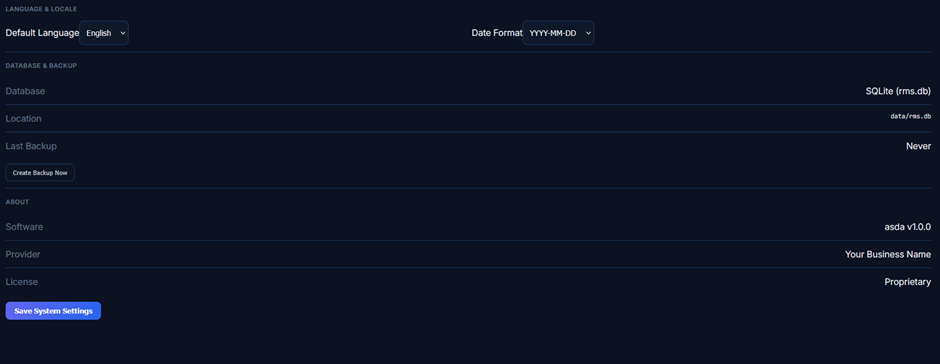
Settings — System Screen
Purpose
The System settings interface provides administrators with centralized access to environmental and persistence controls. It handles regional formatting preferences, manual database backup generation, and displays key system and software metadata.
Features
1. Language & Regional Formatting (LANGUAGE & LOCALE)
· Default Language Selector: Dropdown menu defaulting to English ⌵ to set the system-wide interface language.
· Date Format Selector: Dropdown menu defaulting to YYYY-MM-DD ⌵ to establish global date representation standards across invoices, reports, and logs.
2. Database & Data Protection (DATABASE & BACKUP)
· Database Engine: Displays the active relational database engine and file schema (SQLite
(rms.db)).
· Storage Location: Shows the physical storage path for data persistence (data/rms.db).
· Last Backup Status: Real-time timestamp indicating the last successful system backup (Never).
· Create Backup Now Button: Secondary dark action button (Create Backup Now) to trigger an immediate snapshot and archive of the active database.
3. Platform & Licensing Details (ABOUT)
· Software Version: Active application build and version release identifier (asda
v1.0.0).
· Provider: Deployed service or solution provider designation (Your Business Name).
· License Type: Software licensing model governing the deployment (Proprietary).
4. Form Actions
· Save System Settings CTA Button: Solid blue primary action button (Save System Settings) located at the bottom left to commit language, locale, and system-level configuration changes.
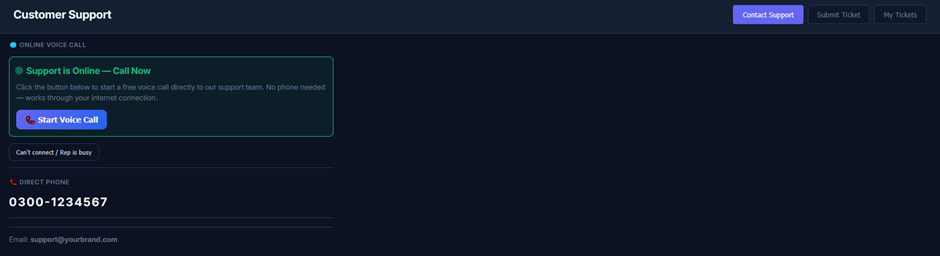
Customer Support Screen
Purpose
The Customer Support interface provides an accessible support hub for retail staff and system administrators. It allows users to initiate instant web-based voice calls, view direct telephone helpline details, copy support email contacts, and navigate to formal ticket submission workflows.
Features
1. Header Navigation & Sub-Module View Switcher
· Module Heading: Prominently positions the overarching section title (Customer Support).
· Navigation View Tabs: Top-right tab switcher facilitating navigation across support channels:
o Contact Support: Active highlighted purple/blue button (Contact Support) displaying real-time communication options.
o Submit Ticket: Navigates to the issue reporting and detailed trouble-ticket submission form.
o My Tickets: Navigates to the user's submitted ticket history and resolution tracking matrix.
2. Real-Time Web Calling (ONLINE VOICE CALL)
· Section Notice: Labeled as 🌐
ONLINE VOICE CALL.
· Online Status Card (Green Border):
o Status Indicator: Green dot accompanied by the status headline (Support is Online — Call Now).
o Instructional Note: "Click the button below to start a free voice call directly to our support team. No phone needed — works through your internet connection."
o Start Voice Call CTA Button: Solid blue primary button featuring a telephone icon (📞 Start Voice Call) to launch an in-browser VoIP call.
· Troubleshooting Action: Secondary dark button (Can't connect / Rep is busy) to trigger alternative connection protocols or request a callback.
3. Direct Telephony & Email Channels (DIRECT PHONE)
· Section Label: Labeled with a red handset icon as 📞 DIRECT PHONE.
· Helpline Number: Prominently formatted direct phone contact (0300-1234567).
· Email Support Channel: Text contact displayed at the bottom (Email:
support@yourbrand.com) for asynchronous issue reporting.
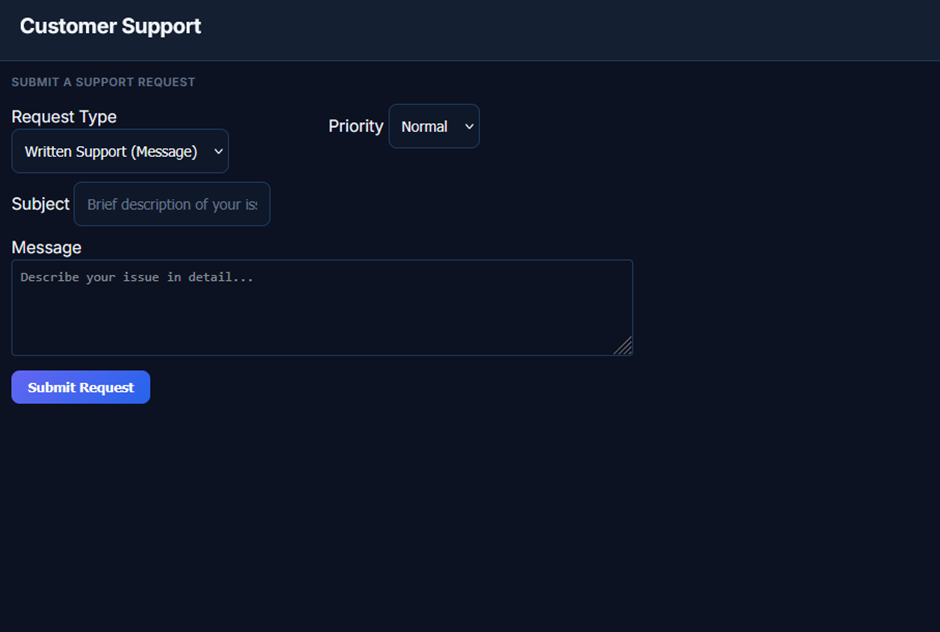
Submit Ticket Screen
Purpose
The Submit a Support Request interface provides a structured form to create and dispatch support cases. It standardizes incoming inquiries by capturing request channels, assigning priority rankings, and gathering comprehensive problem statements to accelerate troubleshooting and resolution.
Features
1. Header Section
· Module Heading: Displays the primary section title (Customer Support).
· Section Notice: Subtitle indicating the active form mode (SUBMIT A SUPPORT REQUEST).
2. Request Configuration Fields
· Request Type Selector: Dropdown menu defaulting to Written Support (Message) ⌵ to specify the channel or format of the support case.
· Priority Selector: Dropdown menu defaulting to Normal ⌵ to classify the urgency and business impact of the reported issue (e.g., Normal, High, Urgent).
· Subject Field: Single-line text input box (Subject) with placeholder text (Brief description of your issue...) to capture a concise summary of the problem.
· Message Box: Multiline expandable textarea (Message) with placeholder (Describe your issue in detail...) allowing users to provide in-depth operational context, error logs, or specific steps to reproduce the issue.
3. Form Submission
· Submit Request CTA Button: Solid blue primary action button (Submit Request) located at the bottom left to validate the inputs, create the support ticket, and route it to the technical support queue.
Customer Support — My Tickets Screen
Purpose
The My Tickets interface provides a centralized overview of all active and resolved technical support cases. It offers complete transparency into reported issues by displaying communication channels, urgency tiers, ticket lifecycles, and direct technician replies.
Features
1. Header Navigation & Sub-Module Switcher
· Module Title: Displays the overarching section title (Customer Support).
· Navigation View Tabs: Top-right tab switcher facilitating navigation across support channels:
o Contact Support: Navigates to live calling and direct phone contact details.
o Submit Ticket: Navigates to the support case creation and ticket submission form.
o My Tickets: Active highlighted purple/blue button (My Tickets) displaying the user's support case audit log.
2. Support Ticket Audit Data-Grid
A structured, dark-themed tabular matrix detailing all logged support cases:
· Tabular Columns:
o Type: Visual channel indicator (e.g., Phone icon for telephony/voice requests, ✉️ Envelope icon for written/message tickets).
o Subject: Title or core problem summary of the reported issue (e.g., System crashed during sale, POS not printing receipts).
o Priority: Dynamic urgency classification:
§ Urgent (Red Text): Critical business-halting failure requiring immediate intervention.
§ High (Orange/Yellow Text): Major operational malfunction with high business impact.
o Status: Operational lifecycle state with color-coded dot indicator:
§ Open: Case is actively queued and pending investigation.
§ Resolved: Case has been addressed and concluded.
o Date: Timestamp of ticket creation formatted as YYYY-MM-DD HH:MM (e.g., 2026-07-16 16:57).
o Reply from Support: Real-time feedback or troubleshooting instructions from the support team:
§ Awaiting response... (Muted grey text indicating a pending queue).
§ Please check printer driver settings. Ensure Auto-Print is enabled. (Green text delivering the resolution step).

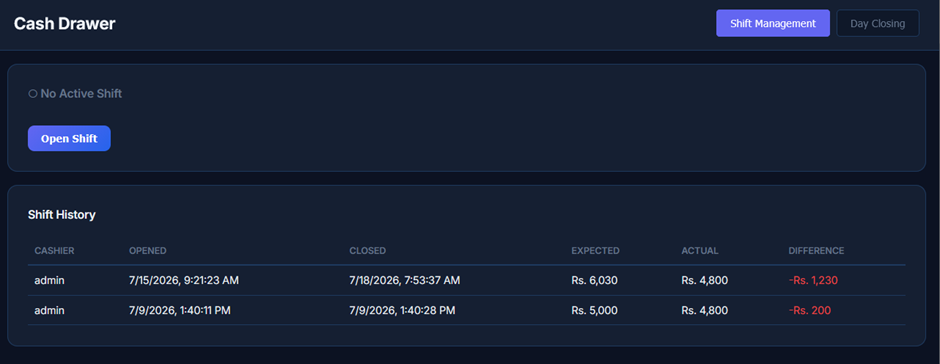
Cash Drawer — Shift Management Screen
Purpose
The Shift Management interface provides operational control over cashier shifts and cash register accountability. It allows cashiers to open active working shifts and presents a complete historical audit log of past shifts—highlighting cashier identities, operational durations, expected balances, physical drawer counts, and cash variances.
Features
1. Header Navigation & Sub-Module View Switcher
· Module Heading: Prominently positions the overarching domain title (Cash Drawer).
· Navigation View Tabs: Top-right tab switcher enabling direct navigation across cash management workflows:
o Shift Management: Active highlighted blue button (Shift Management) displaying shift controls and drawer audit logs.
o Day Closing: Dark toggle button to navigate to the master end-of-day register settlement and closing console.
2. Active Shift Status & Control Panel
· Shift Status Indicator: Visual radio/bullet marker indicating the current register state (⚪
No Active Shift).
· Open Shift CTA Button: Solid blue primary action button (Open Shift) to open a new cashiering session and enter the initial starting cash float.
3. Shift History Data-Grid (Shift History)
A structured, dark-themed tabular matrix recording historical register shifts and cash reconciliation details:
· Tabular Columns:
o CASHIER: Username or identifier of the staff member responsible for the shift (e.g., admin).
o OPENED: Exact opening timestamp formatted with date and time (e.g., 7/15/2026, 9:21:23 AM, 7/9/2026, 1:40:11 PM).
o CLOSED: Closing and settlement timestamp (e.g., 7/18/2026, 7:53:37 AM, 7/9/2026, 1:40:28 PM).
o EXPECTED: Calculated theoretical drawer balance based on opening cash float, sales receipts, and cash payouts (e.g., Rs. 6,030, Rs. 5,000).
o ACTUAL: Physical cash count entered by the cashier at the time of closing (e.g., Rs. 4,800).
o DIFFERENCE: Net shortage or overage highlighted in Red to signal cash discrepancies (e.g., -Rs. 1,230, -Rs. 200).
Thanks for your feedback!