Prescription Management System
Login Module Documentation
Overview
The Neuro Clinic Management System is a modern healthcare management platform designed to streamline clinic operations, patient management, appointments, medical records, and diagnostic services. The Login Module serves as the secure entry point for authorized users to access the system.
Login Page
Purpose
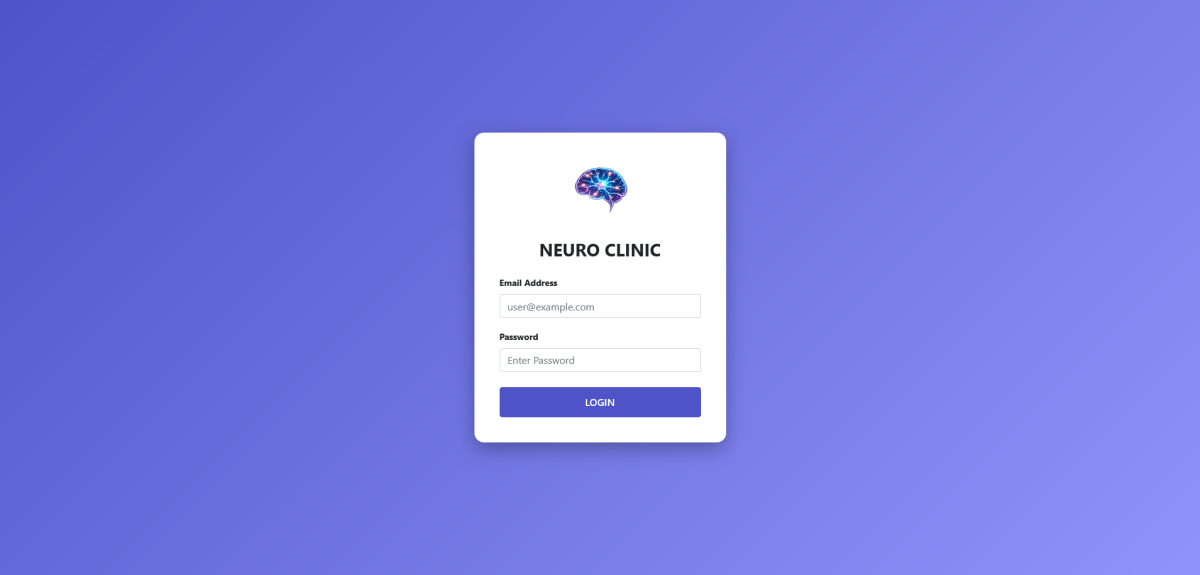
The Login Page provides secure authentication for healthcare professionals, administrators, and authorized staff members. Users must enter valid credentials to access the clinic dashboard and system features.
Features
1. Secure User Authentication
- Authorized access through registered email address and password.
- Protection against unauthorized system access.
- Secure credential verification process.
2. Email Address Input
- Allows users to enter their registered email address.
- Supports accurate user identification before authentication.
3. Password Protection
- Secure password entry field.
- Password characters are hidden to ensure privacy and security.
4. Login Button
- Validates user credentials.
- Redirects authenticated users to the system dashboard.
Dashboard Module Specifications
Purpose
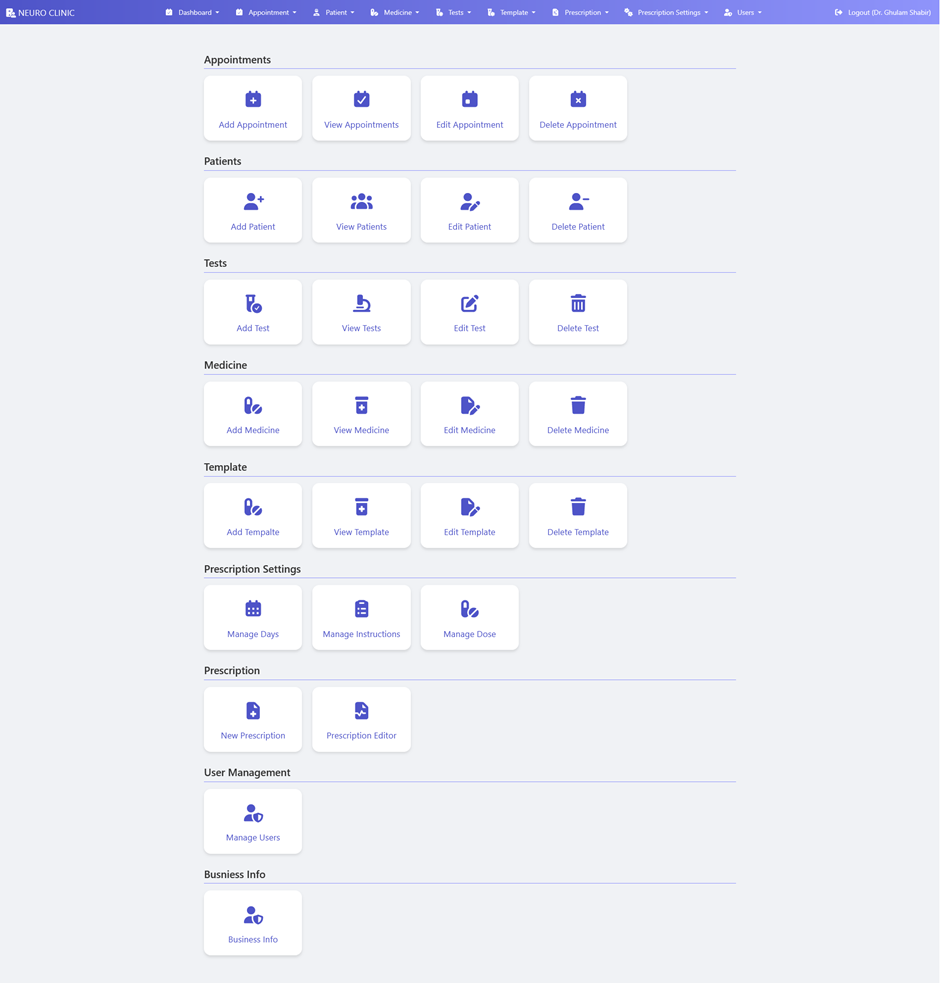
The Dashboard provides a consolidated, grid-based navigation interface that allows authenticated staff (such as Dr. Ghulam Shabbir) to perform CRUD (Create, Read, Update, Delete) operations across various clinical modules efficiently, reducing administrative overhead.
Features & Technical Specifications
1. Top Navigation Bar & Session Management
· Displays persistent branding (Neuro Clinic) alongside quick-access dropdown menus for all major sections.
· Features a secure session termination gateway (Logout) showing the active user's name to ensure accountable and audited system access.
2. Appointments Management Module
· Add Appointment: Launches the scheduling wizard to book new patient consultations.
· View Appointments: Displays a dynamic schedule grid or list of current and upcoming bookings.
· Edit / Delete Appointment: Provides administrative controls to modify booking times or cancel records.
3. Patient Information Management Module
· Add Patient: Opens the digital intake form to register new patient demographic and medical records.
· View Patients: Centralizes search and filters to retrieve comprehensive historical patient records.
· Edit / Delete Patient: Facilitates continuous updates to patient files while maintaining regulatory data control.
4. Diagnostic Tests Configuration Module
· Add / View Tests: Allows clinical staff to define, categorize, and track neurological and laboratory diagnostic tests.
· Edit / Delete Test: Updates or removes obsolete diagnostic test parameters from the active system directory.
5. Medicine Inventory & Catalog Directory
· Add / View Medicine: Manages the system-wide pharmaceutical directory used during prescription generation.
· Edit / Delete Medicine: Adjusts medicine names, formulations, or availability markers in real-time.
6. Prescription Template Management
Add Template: Empowers consultants to save standardized prescription templates for frequent neurological conditions, dramatically reducing repetitive entry time.
View / Edit / Delete Template: Provides complete lifecycle management of saved prescription layouts.
7. Advanced Prescription Settings
Manage Days: Configures preset medication duration options (e.g., weekly, monthly courses).
Manage Instructions: Defines recurring clinical intake directives (e.g., "Before Food", "At Bedtime").
Manage Dose: Standards dosage frequencies and measurements (e.g., "1-0-1", "5mg") for error-free entry.
8. Prescription Engine
· New Prescription: Launches the primary digital pad to generate and customize immediate patient prescriptions.
· Prescription Editor: Opens advanced design and structural layout editors to customize physical or digital outputs.
9. User Access & Security Management
· Manage Users: Role-Based Access Control (RBAC) panel allowing administrators to add, edit, or revoke system permissions for clinic staff.
10. Business & Institutional Profiles
· Business Info: Centralizes institutional settings including clinic address, contact details, branding, and registration details for automated inclusion on printouts and headers.
Appointment Module Specifications
Purpose
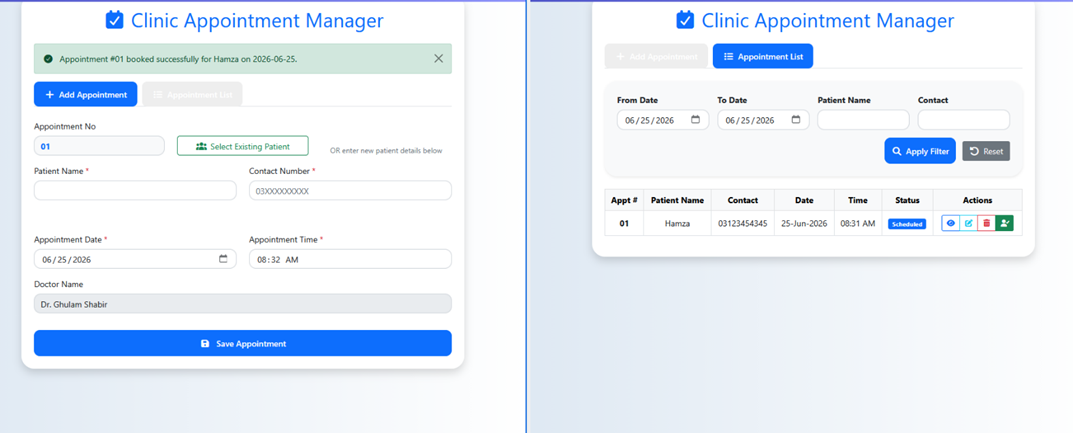
The Appointment Manager automates the tracking of daily patient registrations, eliminates double-booking errors, and provides extensive data-filtering options to help clinic coordinators organize patient queues for consultants such as Dr. Ghulam Shabir.
View 1: Add Appointment (Booking Engine)
Features & Technical Specifications
1. Real-Time Success Alerts & Notifications
· Displays an immediate, dismissible toast notification upon a successful record commit (e.g., "Appointment #01 booked successfully for Hamza...").
· Provides rapid visual validation to ensure operational data integrity.
2. Dual-Mode Patient Assignment Engine
· Select Existing Patient: Links instantly to the primary patient directory database to auto-populate fields for returning patients, accelerating intake workflows.
· Inline New Registration: Allows the clerk to directly enter fallback parameters (Patient Name, Contact Number) for walk-ins or first-time patients right inside the form.
3. Auto-Sequenced Metadata Fields
· Appointment No: System-generated read-only unique chronological sequence marker to manage patient priority queues cleanly.
· Doctor Name: Read-only fields pre-mapped to the assigned specialist session to minimize user error during high-frequency desk work.
4. Scheduled Temporal Tracking
· Appointment Date & Time Pickers: Standardized, localized calendar drop-downs and time input selectors ensuring exact logging of scheduled diagnostic sessions.
View 2: Appointment List (Data Filtering & Queue Audit)
Features & Technical Specifications
1. Advanced Multi-Criteria Filter Matrix
· Temporal Range Selectors: Configurable date bounds (From Date / To Date) to extract historical or future scheduling patterns.
· Dynamic Text Query Strings: Real-time lookup parameters (Patient Name, Contact) to track down individual bookings instantaneously.
· Apply Filter & Reset Controllers: One-click active dataset query builders to refresh grid records without full page reloads.
2. Dynamic Interactive Data Grid (Table)
· Maps complex backend scheduling tuples into organized tabular vectors: Appt #, Patient Name, Contact, Date, Time, and Status.
· Status Badge Badging: Employs crisp color-coded operational identifiers (e.g., Blue for Scheduled) to give the front desk an instantaneous visual summary of the patient queue status.
3. Contextual Row-Level Actions Gateway
Inline administrative toolsets embedded directly inside each data row entry:
· View Details / Medical Pre-Screening: Fast lookup of raw entry telemetry.
· Edit Record: Instantly updates timeslots or contact details.
· Cancel / Delete: Safely purges or invalidates outdated appointments.
· Consultant Check-In / Status Update: Marks the patient as ready to be seen by the physician.
The Patient Vitals & Demographic Manager Purpose
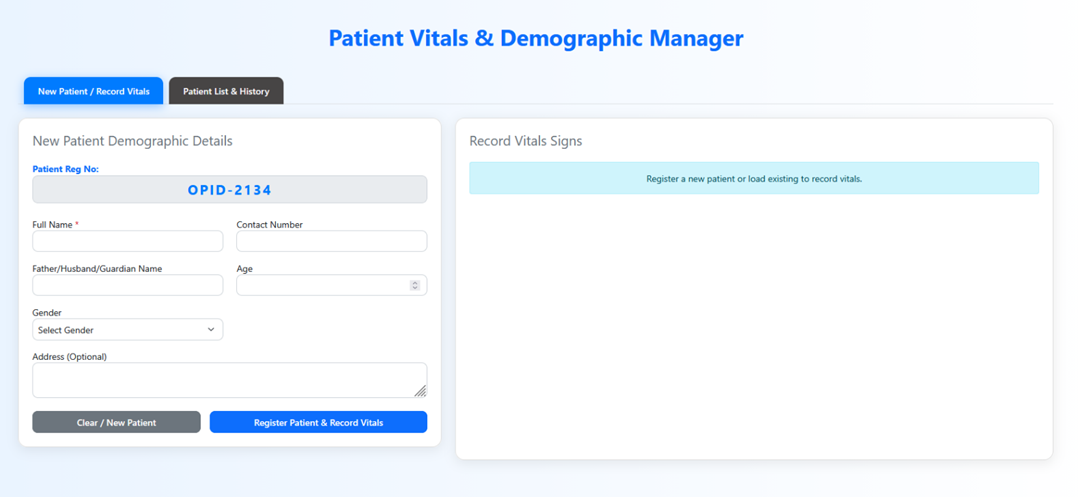
This module centralizes patient intake workflows, assigns unique clinical tracking numbers (OPIDs), and prepares clinical records for incoming consultations. It eliminates duplicate file creation and ensures complete data collection through a structured, multi-panel tabbed workspace.
Component 1: Main Work Navigation (Tab Switching)
· New Patient / Record Vitals: Activates the dual-panel screen dedicated to intake forms and physiological metrics collection.
· Patient List & History: Switches context to an searchable database containing historical logs, past vitals charts, and older patient files.
Component 2: New Patient Demographic Details Panel (Left Pane)
Features & Technical Specifications
1. System-Generated OPID Tracking
o Automatically generates and prominently displays a bold, unique Patient Registration Number (e.g., OPID-2134) inside a read-only field.
o Serves as the primary key across the entire application ecosystem, linking clinical diagnostics, templates, and billing records to a single identity.
2. Core Demographic Collection Fields
o Full Name & Contact Parameters: Captures required primary identification strings to manage clinical queues and urgent patient follow-ups.
o Relationship Context Field: Includes a comprehensive Father/Husband/Guardian Name selector to capture essential guardian tracking for pediatric or dependent neurological patients.
o Age & Gender Selectors: Utilizes explicit validation components (numeric tickers and localized dropdowns) to track basic demographics critical for evaluating age-specific neurological baselines.
o Address Text Area: A roomy, optional text area providing context for demographic analysis and patient correspondence.
3. Form State Controllers (Action Buttons)
o Clear / New Patient: Instantly resets all active fields, clearing memory caches to safely start an alternative registration layout without data bleeding.
o Register Patient & Record Vitals: Validates the input array, registers the data to the central database, and unlocks the secondary processing panel.
Component 3: Record Vital Signs Panel (Right Pane)
Features & Technical Specifications
1. Conditional UI Workflow Guard
o Employs a smart, context-sensitive prompt notification placeholder ("Register a new patient or load existing to record vitals.").
o Prevents front desk errors by keeping complex physiological data input entry disabled until a valid, active OPID session is initialized.
2. Future Integration Target (Upon Form Activation)
o Designed to unlock and host vital diagnostic fields including Blood Pressure (BP), Pulse Rate (PR), Respiratory Rate (RR), Body Temperature (Temp), and Weight (Wt) for a complete pre-screening clinical snapshot.
Diagnostic Test Configuration Module
Purpose
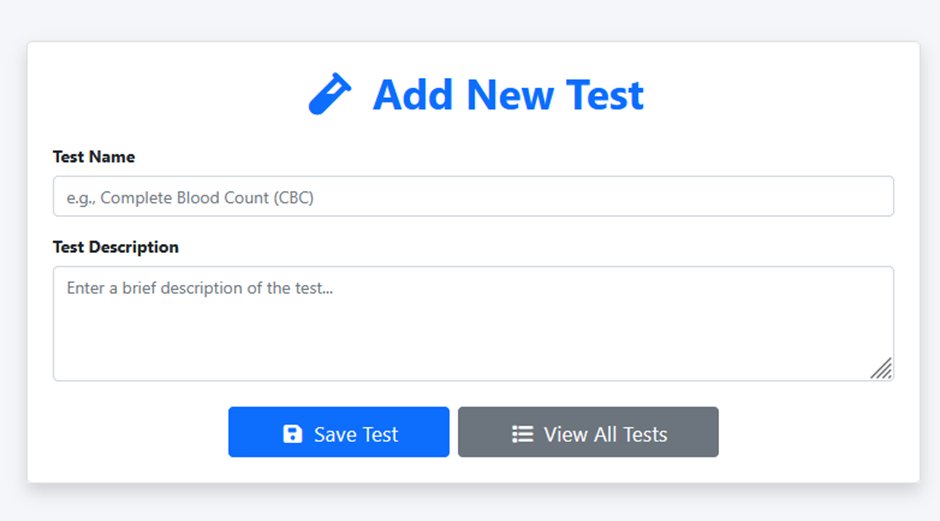
This module provides a clean, clutter-free data entry interface to expand the clinic's medical test directory. By standardizing the names and descriptions of diagnostic requests, it ensures clear communication on printed prescriptions and prevents administrative errors during patient checkouts and laboratory handoffs.
Form Layout & Technical Specifications
1. Descriptive Header Configuration
· Includes a distinct visual icon anchor (Test Tube/Vial) paired with a bold, high-contrast "Add New Test" title to instantly establish the user's workspace context.
2. Standardized Test Name Input
· Field Type: Single-line string text input field.
· Instructional Guide: Features a clear, descriptive placeholder string (e.g., Complete Blood Count (CBC)) to encourage consistent data formatting and nomenclatures (e.g., EEG, EMG, MRI Brain, Serum B12).
3. Expanded Test Description Field
· Field Type: Multi-line resizable text area.
· Instructional Guide: Employs an intuitive placeholder (Enter a brief description of the test...) allowing users to attach clinical instructions, specific laboratory criteria, fasting requirements, or baseline pre-test protocols.
· UI/UX Control: Includes a standard bottom-right drag corner for manual size adjustments based on input length.
4. Core Action Controllers (Navigation & Submission)
· Save Test Button: A primary royal blue action button featuring a save icon. It triggers form validation, sanitizes inputs, commits the new entity to the active database catalog, and refreshes the form state.
· View All Tests Button: A neutral slate-grey navigation button featuring a list icon. It provides a direct shortcut link to the main diagnostic database view, allowing operators to quickly verify, update, or edit existing test directories without resetting page context.
Diagnostic Test Directory
Purpose
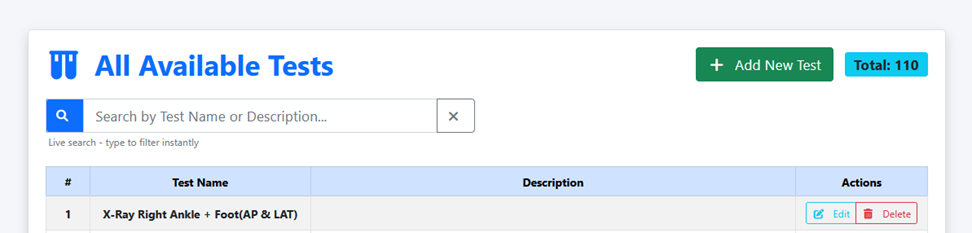
This interface provides full oversight, instant filtering, and immediate lifecycle management tools for the clinic's diagnostic offerings. It allows data operators to monitor aggregate catalog volumes and verify index definitions without running manual database queries.
Header Actions & Metric Summaries
1. Descriptive Context & Icon Anchor
· Integrates a distinct double-vial visual icon paired with a prominent "All Available Tests" heading to cleanly mark the system scope.
2. Dynamic Aggregation Metric Display (Total Counter)
· Features a high-visibility, bright cyan badge displaying the real-time record count (e.g., "Total: 110").
· Provides an instantaneous audit check on the clinic's complete diagnostic offering volume.
3. Form Shortcut Navigation
· Add New Test Button: A distinct green action controller equipped with a plus icon that acts as a direct link, allowing operators to seamlessly toggle back to the creation form.
Search Engine & Data Grid Management
1. High-Speed Filtering Console
· Live Search Bar: Uses a wide, integrated text filter input allowing real-time searching against Test Name or Description parameters.
· Instant Feedback Utility: Includes an explicit operational hint ("Live search - type to filter instantly"), reflecting an asynchronous client-side filtering system that updates records on-the-fly as the user types.
· Clear Search Mechanism: Features a dedicated inline cancellation box (X) to instantly flush active text filters and restore the full base dataset view.
2. Tabular Data Matrix
· Displays records within a structured, pale-blue accented grid consisting of three core information tracks:
§ Index Number (#): Chronological, unique table row identifier sequence.
§ Test Name: The formal clinical designation of the procedure (e.g., X-Ray Right Ankle + Foot(AP & LAT)).
§ Description: Field showing associated clinical requirements or baseline notes.
3. Inline Row Action Triggers
· Every catalog listing is equipped with a dual-control operational group under the Actions column:
§ Edit Button: Launches a modal or input view to quickly update diagnostic terminology or internal instructions.
§ Delete Button: A clear, crimson action trigger designed to purge obsolete or redundant test definitions from the active system schema safely.
Here is the structured Technical & Marketing Module Documentation for your Add New Medicine form interface, keeping the exact professional layout, depth, and style perfectly consistent with the previous modules.
Medicine Inventory & Catalog Module
Purpose
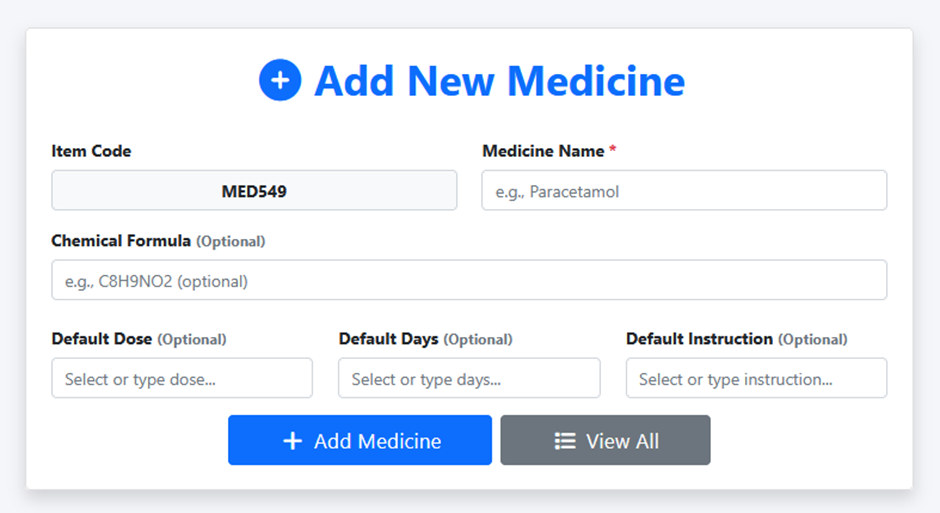
This module provides a highly organized input interface to expand the clinic's pharmaceutical catalog. By configuring mandatory branding tags alongside optional clinical properties (like default dosages and chemical structures), it streamlines data retrieval inside the digital prescription pad.
Form Layout & Technical Specifications
1. Descriptive Header Configuration
· Includes a distinct visual icon anchor (Plus Circle) paired with a bold, high-contrast "Add New Medicine" title to instantly orient the data operator.
2. Core Identification Matrix
· Item Code: Automatically generates and displays a unique, bold SKU-style identification marker (e.g., MED549) inside a read-only field. This acts as the system-level database index code.
· Medicine Name: A mandatory single-line text field marked with an explicit red asterisk (*). Features an intuitive, practical placeholder (e.g., Paracetamol) to guide brand-name entry.
3. Scientific Classification Field
· Chemical Formula (Optional): An optional, wide single-line input field featuring a scientific placeholder string (e.g., C8H9NO2 (optional)). This allows clinics to log raw generic active ingredients alongside proprietary brand names for clear cross-referencing.
4. Prescriptive Automation Controllers (Smart Defaults)
· Default Dose (Optional): A hybrid combobox field (Select or type dose...) that empowers operators to map a baseline dosage structure to the medication out-of-the-box.
· Default Days (Optional): A customizable field (Select or type days...) to automate standard medication durations, speeding up routine therapeutic cycles.
· Default Instruction (Optional): An instructional combobox field (Select or type instruction...) designed to pre-populate standard medical intake directions (e.g., Before Food, At Bedtime).
5. Core Action Controllers (Navigation & Submission)
· Add Medicine Button: A vibrant royal blue submission engine equipped with a plus icon. It runs database validation, commits the active dataset profile, and clears the UI context for subsequent entries.
· View All Button: A neutral slate-grey shortcut tool equipped with a list index icon, allowing operators to seamlessly jump directly to the primary pharmaceutical ledger and directory list.
Medicine Module Specifications
Purpose
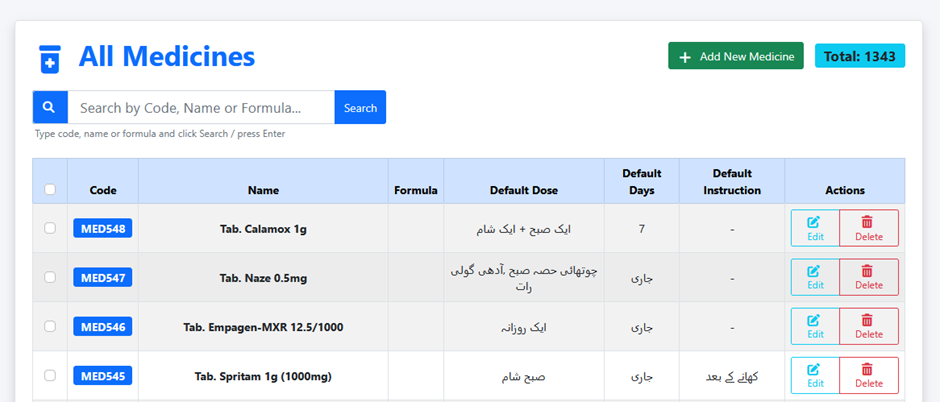
This interface facilitates lightning-fast database lookups and comprehensive catalog audits for large pharmaceutical datasets. It allows data entry operators and clinicians to review stock indexes, track active formulations, and update preset regional language instructions without querying raw database tables.
Header Actions & Metric Summaries
1. Descriptive Context & Icon Anchor
· Displays a distinct clinical medicine cabinet/box icon paired with a prominent, high-contrast "All Medicines" header to instantly define the active workspace.
2. Inventory Volume Tracker (Total Counter)
· Features a bright cyan status badge showing the total real-time database record count (e.g., "Total: 1343").
· Highlights the system’s high scalability and capacity to support extensive pharmaceutical listings seamlessly.
3. Creation Shortcut Controller
· Add New Medicine Button: A persistent, high-visibility green button containing a plus icon, functioning as an instant toggle back to the medicine entry layout.
Search Engine & Tabular Record Matrix
1. Multi-Parameter Query Console
· Integrated Search Bar: A wide text input field providing flexible lookups against multiple database tables simultaneously via Code, Name, or Formula parameters.
· Explicit Submission Workflow: Features a royal blue "Search" trigger button alongside a user-friendly behavioral subtext guidance string ("Type code, name or formula and click Search / press Enter").
2. Regionalized Core Ledger Grid
· Maps out medication profiles across a structured, multi-column master data grid:
· Selection Matrix (Checkboxes): Leftmost selection boxes allowing for future batch processing or bulk deletions.
· Code: High-visibility, blue-badged primary database indexes (e.g., MED548, MED547).
· Name: Formal clinical brand names along with forms and strengths (e.g., Tab. Calamox 1g, Tab. Naze
0.5mg).
· Formula: Displays raw generic biochemical structures where mapped.
· Default Dose & Instructions: Supports native Urdu script mappings to match local clinical printout styles and simplify patient compliance.
· Default Days: Tracks duration bounds, safely handling numerical ranges (e.g., 7) or open-ended chronic conditions marked as continuous.
3. Inline Management Gateways
· Each medication listing features an isolated dual-button control set under the Actions layout header:
· Edit Button: Instantly unlocks input parameters to update stock brand names, strengths, or localized dosage instructions.
· Delete Button: A clear, crimson trigger designed to purge obsolete or restricted pharmaceutical formulas from the active clinical directory securely.
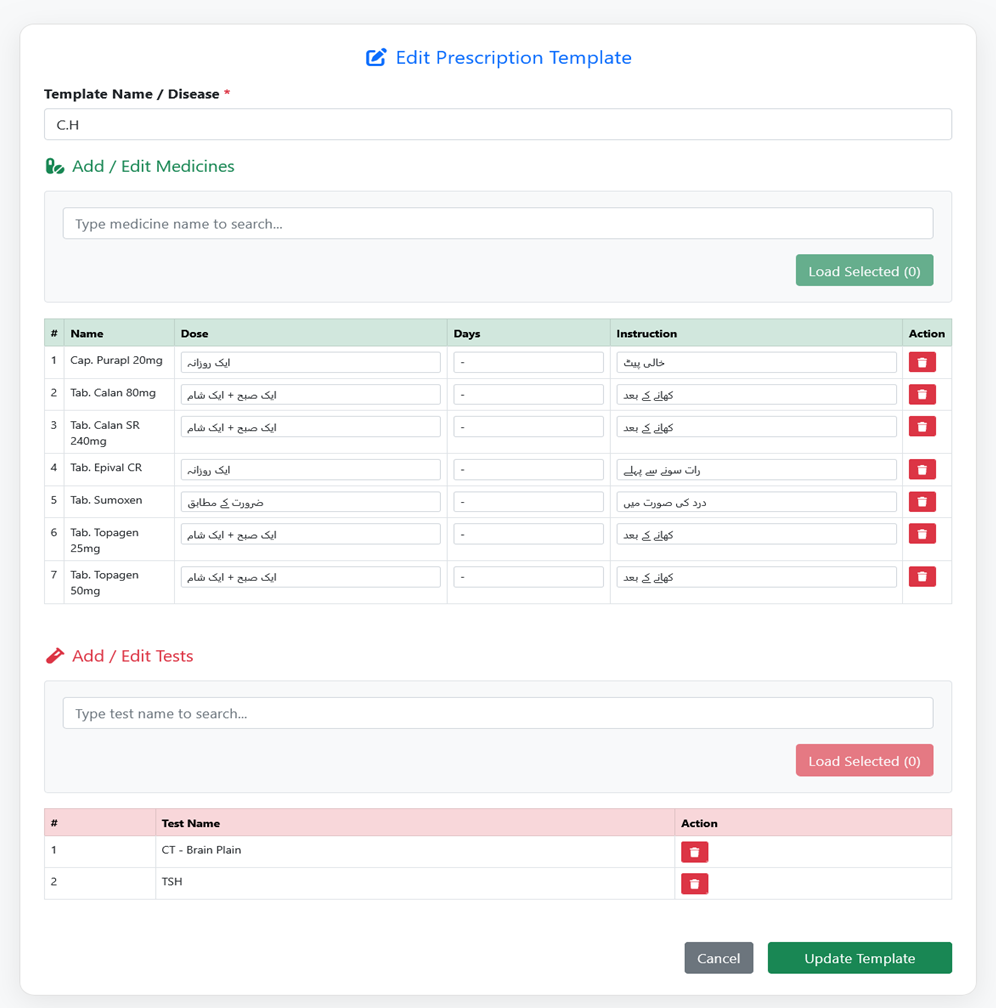
Prescription Template Module
Purpose
This interface provides full structural control to update saved presets. By combining an autocomplete search engine for medications and diagnostics with inline data modification grids, it allows a clinician to quickly tweak template standards to optimize daily patient workflows.
Component 1: Core Template Meta-Data
1. Descriptive Context Header
· Integrates a blue edit icon paired with a bold "Edit Prescription Template" title to immediately define the administrative context.
2. Template Identification Field
· Template Name / Disease: A mandatory text input field marked with a red asterisk (*). It houses the medical classification acronym or disease label (e.g., C.H for Chronic Headache / Cluster Headache) that acts as the primary search tag when loading the template inside the active prescription pad.
Component 2: Dynamic Medication Bundling Grid (Add / Edit Medicines)
Features & Technical Specifications
1. Asynchronous Pharmaceutical Lookup Console
· Features an autocomplete search field ("Type medicine name to search...") paired with a dedicated collection counter badge ("Load Selected (0)"). This enables instant search across thousands of database entries and queues multiple items before committing them to the template grid.
2. Tabular Formulation Customizer Matrix
· Maps loaded items into an interactive configuration grid featuring specialized neurological drugs (e.g., Cap. Purapi 20mg, Tab. Calan 80mg, Tab. Epival CR, Tab. Topagen):
· Dose Selection Field: Allows individual override mapping for localized Urdu script directives.
· Days Duration Controller: Sets preset temporal durations or fallback indicators (-) for chronic management lines.
· Instruction Association Selector: Maps localized timing directives directly to the medication profile row.
3. Row-Level Evacuation Interface
· Every mapped medication contains an individual crimson trash icon under the Action column to quickly remove irrelevant formulas from the template macro.
Component 3: Diagnostic Testing Protocol Panel (Add / Edit Tests)
Features & Technical Specifications
1. Laboratory Lookup Entry Point
· Employs a dedicated diagnostic search engine ("Type test name to search...") and counter badge ("Load Selected (0)") styled with a distinct clinical pink/red accent layout to keep it clearly separated from medication data.
2. Diagnostic Protocol Matrix
· Pairs complex neurological imaging and metabolic baseline profiles directly to the disease template:
· Test Name Field: Displays the exact laboratory or radiological index terms (e.g., CT -
Brain Plain, TSH for Thyroid Stimulating Hormone).
3. Protocol Purge Triggers
· Includes individual row-level crimson trash actions, allowing developers or medical admins to eliminate obsolete or non-essential lab requests from the diagnostic bundling structure.
Component 4: Core Lifecycle Controllers
· Cancel Button: A neutral slate-grey action controller that discards current workspace edits and safely redirects back to the primary Template List view without modifying database records.
· Update Template Button: A bold, green validation engine that runs transactional validation checks, syncs modifications back to the active database table, and pushes a success state to the system layout.
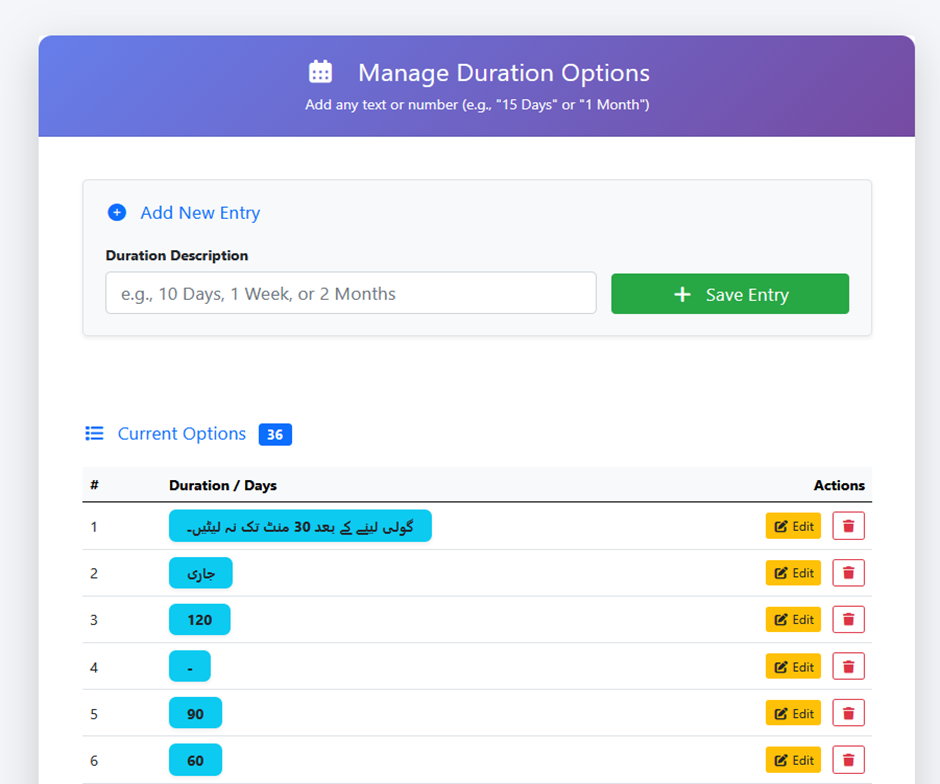
Manage Duration Options Module
Purpose
This interface provides full oversight and CRUD (Create, Read, Update, Delete) capability for medication duration attributes. By supporting text-based entries alongside standard integers and localized language directives, it ensures complete operational flexibility when detailing long-term neurological therapies or acute treatment courses.
Header Branding & Feature Context
1. Descriptive Gradient Header
· Uses a clean, royal blue-to-indigo gradient banner containing a calendar/schedule icon and a bold, high-contrast "Manage Duration Options" title.
2. Explicit Instructional Subtext
· Displays user guidance instructions immediately below the title ("Add any text or number (e.g., '15 Days' or '1 Month')"), establishing the semantic versatility of the input fields.
Component 1: Creation Engine (Add New Entry)
Features & Technical Specifications
1. Visual Grouping Grid
· Encloses the input elements within a distinct card component decorated with an inline blue plus icon (Add New Entry) to separate data entry from data history.
2. Flexible Parameter Input Field
· Duration Description Field: A single-line text input string featuring an informative placeholder (e.g., 10
Days, 1 Week, or 2 Months). This field accommodates alphanumeric variables, standard digits, and special characters.
3. Execution Controller
· Save Entry Button: A green action button equipped with a plus icon that instantly validates data inputs, commits the new time attribute to the system schema database, and dynamically repopulates the lookup list below without requiring a manual page refresh.
Component 2: Catalog Audit Directory (Current Options Grid)
Features & Technical Specifications
1. Real-Time Volume Badge Summary
· Integrates a list index icon alongside a prominent blue status badge indicating the aggregate database record total (e.g., "Current Options: 36").
2. High-Visibility Tabular Ledger
· Organizes the active configuration values into a structured database grid consisting of three core information tracks:
· Index Number (#): Chronological, unique sequence table row tracker.
· Duration / Days: Displays the raw, active duration values mapped into high-visibility cyan badges. The engine safely processes multi-format inputs, supporting numerical constants (e.g., 120, 90, 60), fallback placeholders (-), local medical strings (for continuous courses), and explicit clinical.
3. Inline Row Action Triggers
· Every time descriptor listing is equipped with a dual-control toolset under the Actions column for immediate lifecycle administration:
· Edit Button: An amber warning action button that unlocks the text string field to alter existing configurations.
· Delete Button: A clear, crimson action trigger designed to purge obsolete duration presets from the active lookup directory securely.
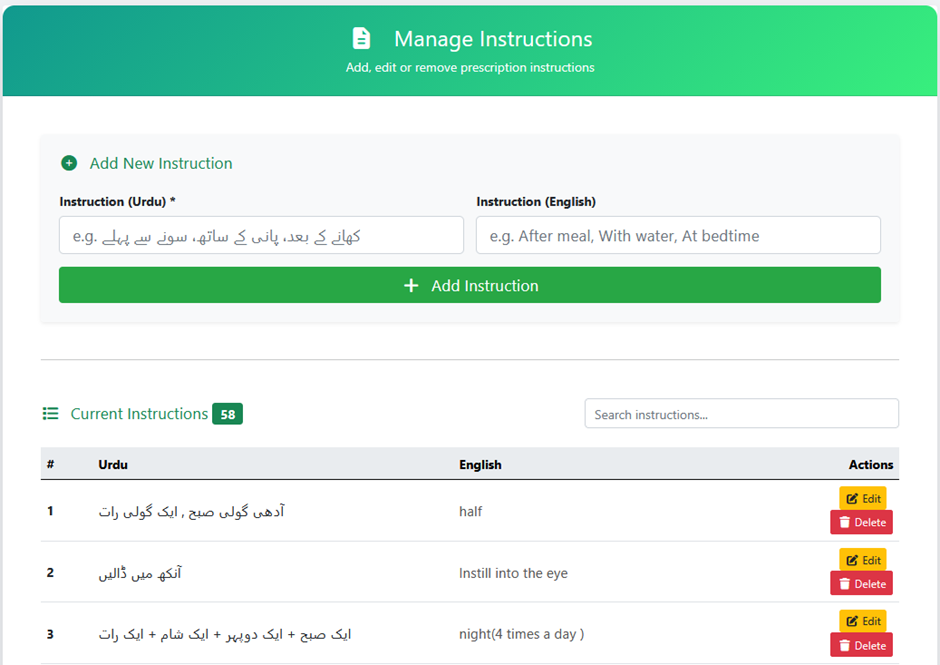
Manage Instructions Module
Purpose
This interface provides full CRUD (Create, Read, Update, Delete) management for cross-lingual patient instructions. It pairs a mandatory Urdu intake string with an English translation, making it easy for clinical assistants or doctors to quickly apply accurate local phrasing to active prescription sheets.
Header Branding & Feature Context
1. Descriptive Gradient Header
· Employs a high-contrast emerald green-to-mint gradient banner containing a document/file icon and a bold "Manage Instructions" title.
2. Clear Functional Subtext
· Displays user guidance subtext immediately below the heading ("Add, edit or remove prescription instructions"), establishing the system scope.
Component 1: Creation Engine (Add New Instruction)
Features & Technical Specifications
1. Visual Form Grouping
· Encloses the text input components inside a distinct card panel with an inline teal plus icon (Add New Instruction) to isolate the active data entry section from historical logs.
2. Dual-Language Parameter Inputs
· Instruction (Urdu) Field: A mandatory single-line text input field marked with a red asterisk (*). Features an Urdu placeholder to guide consistent local language entries.
· Instruction (English) Field: A parallel single-line text field with a matching translation guide placeholder (e.g. After meal, With water, At bedtime) to build multi-lingual pairs in the database.
3. Execution Controller
· Add Instruction Button: A full-width green action button containing a plus icon. It runs automated database validation, commits the language pair to the system schema, and refreshes the list layout below without requiring a full page reload.
Component 2: Catalog Search & Directory Grid
Features & Technical Specifications
1. Real-Time Volume Badge & Lookup Engine
· Integrates an index list icon alongside a persistent green status badge showing the current database record total (e.g., "Current Instructions: 58").
· Features an inline client-side "Search instructions..." filter bar on the right, allowing data entry staff to find and check existing entries instantly.
2. Bilingual Tabular Ledger
· Maps the saved clinical directives across a clean, multi-column master data grid:
· Index Number (#): Chronological, unique table row tracking sequence.
· Urdu Track: Renders localized Right-to-Left (RTL) script blocks clearly
· English Track: Displays matching Left-to-Right (LTR) translation parameters (e.g., "Instill into the eye", "night(4 times a day)").
3. Inline Row Action Triggers
· Every bilingual listing contains a stacked dual-button control set under the Actions layout column:
· Edit Button: An amber action button that opens up the fields to correct or adjust existing text strings.
· Delete Button: A crimson action trigger designed to safely remove outdated or redundant clinical instructions from the lookup directory database.
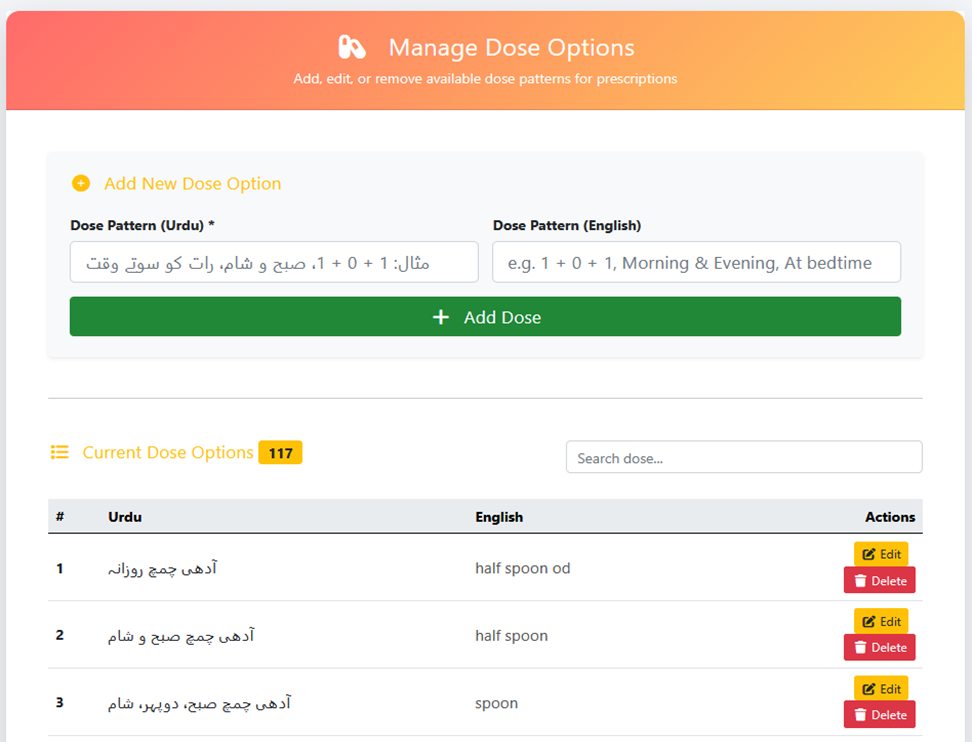
Manage Dose Module
Purpose
This interface provides comprehensive CRUD (Create, Read, Update, Delete) controls for managing complex medical dosage patterns. It pairs regional localized phrasing with standard clinical nomenclature, allowing the system to handle specific pediatric measurements (e.g., spoonfuls) alongside standard adult pill frequencies.
Header Branding & Feature Context
1. Descriptive Gradient Header
· Utilizes an eye-catching, warm coral-to-yellow gradient banner containing a medicine pill/capsule icon and a bold, high-contrast "Manage Dose Options" title.
2. Clear Functional Subtext
· Displays target workflow guidance subtext directly below the heading ("Add, edit, or remove available dose patterns for prescriptions"), establishing the configuration scope.
Component 1: Creation Engine (Add New Dose Option)
Features & Technical Specifications
1. Visual Card Layout Isolation
· Encloses the input elements inside a dedicated workspace panel marked with an inline amber plus icon (Add New Dose Option) to isolate data creation from historical logs.
2. Bilingual Frequency Fields
· Dose Pattern (Urdu) Field: A mandatory input field marked with a red asterisk (*). Features an Urdu placeholder script to guide consistent local language entries.
· Dose Pattern (English) Field: A parallel single-line text field with a matching clinical placeholder layout (e.g. 1 + 0 + 1, Morning & Evening, At bedtime) to build uniform data pairs.
3. Form Submission Action
· Add Dose Button: A full-width green action controller equipped with a plus icon. It executes database sanitation, commits the new dose pair to the database schema, and updates the view dynamically without a page reload.
Component 2: Lookup Catalog Directory (Current Dose Options Grid)
Features & Technical Specifications
1. High-Volume Metric Badge & Search Filter
· Integrates an index list icon alongside a prominent amber status badge tracking the real-time record volume (e.g., "Current Dose Options: 117"), highlighting high scalability.
· Features an asynchronous "Search dose..." filter console on the right for instantaneous catalog lookup.
2. Multi-Lingual Tabular Ledger
· Organizes dosage variations across a clean, high-contrast matrix table:
· Index Number (#): Chronological, unique row tracking key.
· Urdu Track: Handles Right-to-Left (RTL) Arabic font scripts for liquid or fraction measurements (e.g., "آدھی چمچ روزانہ", "آدھی چمچ صبح و شام").
· English Track: Maps the corresponding Left-to-Right (LTR) abbreviations and terms (e.g., "half spoon od", "half spoon", "spoon").
3. Inline Row Action Triggers
· Every data row entry features a stacked dual-button operational group under the Actions header:
· Edit Button: An amber action button that pulls existing strings back into focus for fast corrections.
· Delete Button: A crimson action trigger designed to safely drop obsolete dosage presets from the lookup tables.
Prescription Module Specifications
Purpose
This interface establishes an air-tight mechanism to search, identify, and load or register an active patient session. By utilizing quick-lookup lists and inline fallback creation widgets, it prevents queue bottlenecks and ensures all diagnostic parameters are attached to the correct patient identity.
Header Actions & Global Navigation Utilities
1. Dual-Tab Engine Context
· New / Edit Prescription: Activates the primary, interactive multi-step prescription writing workspace.
· Prescription History: Switches to a complete searchable repository tracking previously finalized and printed records.
2. Persistent Global Modals Quick-Links
· Provides rapid access buttons at the top right corner to inject objects on-the-fly without breaking the current prescription flow:
· Add Template (Green): Launches the macro template builder.
· Add Patient (Green): Direct shortcut to patient intakes.
· New Prescription (Amber): Flushes active wizard states to initialize a completely clean workspace.
Wizard Progress Sub-Navigation Bar
Implements a 6-phase chronological wizard pipeline to compartmentalize complex clinical configurations cleanly. The active block is emphasized with high-contrast branding styling:
1. Patient & Vitals (Active Session)
2. History (Chief Complaints & Past Medical Logs)
3. Diagnosis (Clinical Impressions & ICD Classifications)
4. Template (Instant Macro Condition Bundler)
5. Medicines (Pharmaceutical Prescription Pad)
6. Tests & Save (Laboratory Orders & Record Commit)
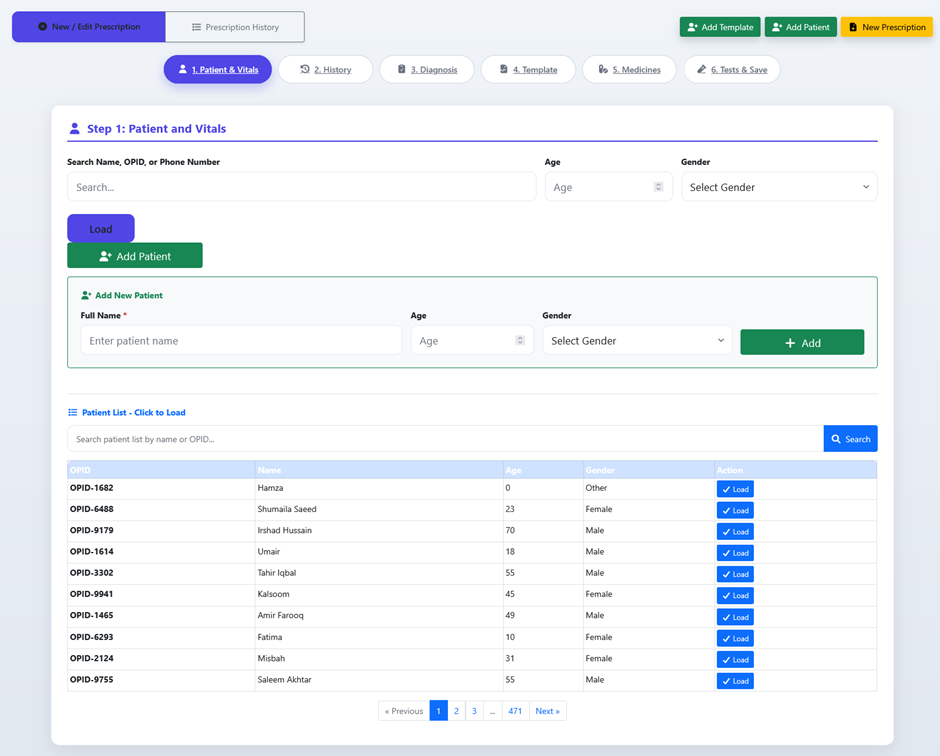
Step 1 Workspace Layout Components
Component A: Multi-Parameter Quick Search & Filter Engine
1. Direct Search Input: A versatile text field allowing clinicians to parse database records instantly using Name, OPID, or Phone Number.
2. Fast Demographic Filters: Side-by-side selectors (Age entry and Gender dropdown picker) to narrow down broad lookups.
3. Load Trigger: A distinct blue "Load" button to execute target configuration caching on the selected parameters.
Component B: Inline Patient Registration Form (Add New Patient Box)
· Enclosed within a clean, green-bordered wrapper block to prevent operational confusion.
· Allows front-desk coordinators or assistants to handle immediate walk-ins by exposing quick fields (Full Name
*, Age, Gender) and committing them instantly via an inline green "+ Add" button, creating a new OPID without forcing a page redirect.
Component C: Asynchronous High-Volume Master Patient Registry Table
· Dedicated Directory Search Input: Features a dedicated "Search patient list by name or OPID..." query box on top of the grid to filter historical records down instantly.
· Interactive Grid Matrix: Maps out the core database registry columns smoothly:
· OPID: System-generated unique primary access tokens (e.g., OPID-1682, OPID-2124).
· Name: Complete registered names (e.g., Hamza, Shumaila Saeed, Irshad Hussain).
· Age & Gender Profiles: Demographics for diagnostic validation.
· Contextual Activation Gateway (Action Column): Every row features a distinct blue "✓ Load" button. Clicking this button immediately binds that specific patient's profile session variables to the wizard memory, unlocking Step 2 seamlessly.
· Server-Side Pagination Controller: Includes full pagination workflows at the footer («
Previous, 1, 2, 3, ..., 471, Next »), showcasing the backend's robust architecture and capacity to scale to tens of thousands of active patient records effortlessly.
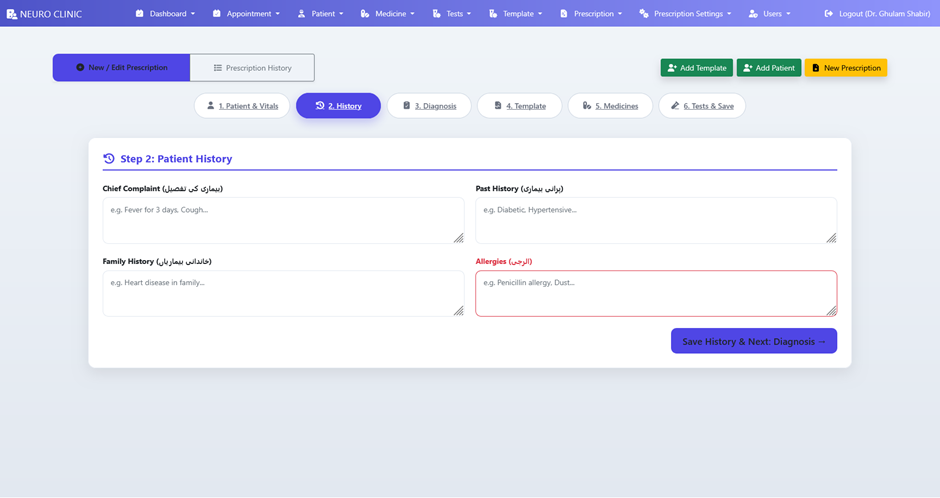
Step 2 Case Documentation Workspace Layout
The workspace is organized into a four-quadrant matrix of specialized clinical text areas. Each field features bilingual formatting (English labels paired with localized Urdu parentheses) to guide assistants or clinicians smoothly.
1. Chief Complaint (بیماری کی تفصیل)
· Field Type: Multi-line, resizable text input area.
· Functional Scope: Records the primary, immediate reasons for the patient's visit (e.g., frequent migraines, numbness in extremities, tremors, sleep disturbances).
· Instructional Aid: Features a standard illustrative placeholder (e.g. Fever for 3 days,
Cough...) to guide prompt documentation of symptoms and onset tracking.
2. Past History (پرانی بیماری)
· Field Type: Multi-line, resizable text input area.
· Functional Scope: Captures the patient's longitudinal systemic medical background (e.g., Diabetes Mellitus, Hypertension, previous strokes, transient ischemic attacks). This provides essential baseline context for assessing chronic neurological risks.
· Instructional Aid: Includes a pre-mapped lifestyle placeholder string (e.g. Diabetic,
Hypertensive...).
3. Family History
Field Type: Multi-line, resizable text input area.
· Functional Scope: Tracks hereditary patterns, genetic predispositions, or familial chronic conditions (e.g., early-onset Alzheimer's, Parkinson’s disease, epilepsy, or cardiovascular anomalies).
· Instructional Aid: Employs a clear ancestral placeholder layout (e.g. Heart disease in
family...).
4. Allergies - High Security Component
· Field Type: Multi-line, resizable text input area highlighted with a distinct crimson safety border.
· Functional Scope: A dedicated safety panel designed to log severe hypersensitivities, contraindicated substances, drug allergies, or environmental triggers.
· Security & UI Strategy: The red border acts as an urgent cognitive flag for the data entry operator, making sure that critical safety metrics (such as a penicillin allergy) stand out clearly on screen and on printed records.
· Instructional Aid: Displays an explicit diagnostic placeholder (e.g. Penicillin
allergy, Dust...).
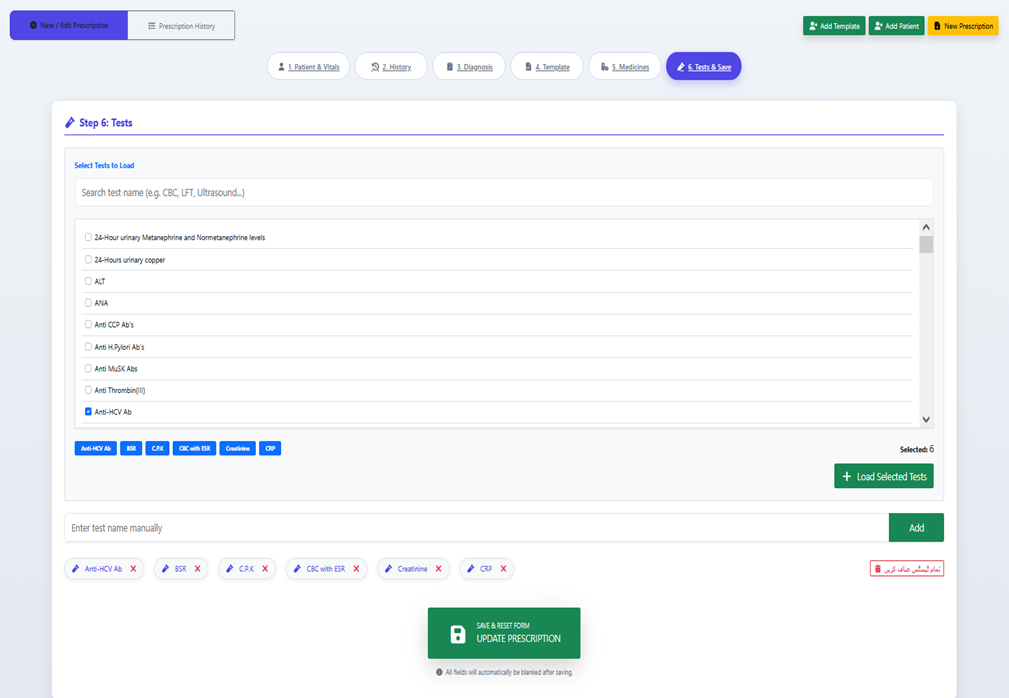
Step 6 Workspace Layout Components
Component A: Database Directory Search & Selection Console
· 1. Asynchronous Search Input: A comprehensive, single-line lookup search bar (Search
test name (e.g. CBC, LFT, Ultrasound...)) linked directly to the clinic's centralized diagnostic directory database table.
· 2. High-Volume Scrollable Checkbox Matrix: A fixed-height container designed to render thousands of laboratory offerings with smooth pagination or native vertical scroll control. It maps complex criteria clearly (e.g., 24-Hour urinary copper, ALT, ANA, Anti CCP Ab's, Anti-HCV Ab).
· 3. Active Caching Queue Badge: Integrates a real-time selection indicator string ("Selected: 6") that tracks active row selections before execution.
· 4. Batch Injection Controller: A persistent green action engine (+ Load Selected Tests) that commits checked checkbox rows into the active active session badge group directly below the lookup widget.
Component B: Inline Manual Fallback Engine
· 1. Direct Add Input Field: A text input field (Enter test name manually) providing a quick operational bypass for unique walk-in scenarios or external lab items that are not indexed in the master directory catalog.
· 2. Inline Target Push Action: Features an adjacent green "Add" button to inject the custom text string into the active prescription order set immediately.
Component C: Visual Order Management Canvas (Active Test Badges)
· 1. Interactive Test Badges: Automatically maps all selected diagnostic investigations into high-visibility, light-blue clinical tokens (e.g., Anti-HCV Ab, BSR, C.P.K, CBC
with ESR, Creatinine, CRP). Each badge contains a dedicated close (X) indicator to instantly remove individual entries from the active document frame.
· 2. Master Purge Action: Features a localized crimson action trigger styled in native script Clear All Tests) to instantly drop the entire active test collection buffer with a single click.
Final Transactional Submission Engine (Global Save)
· Update Prescription Button: The central, full-width emerald green transactional core button (SAVE & RESET FORM / UPDATE PRESCRIPTION) embedded with a database system icon.
· Transactional Operations: Clicking this button executes atomic backend updates across multiple tables (patient state updates, diagnosis logging, drug dosages, and laboratory requests), commits the prescription to the database schema, and flushes the application state variables.
· Automated Safety Disclaimer: Employs an explicit operational system subtext hint ("All fields will automatically be blanked after saving."), giving clear sensory feedback to clinical operators that the data has been committed and the application is ready to process subsequent patient slots.
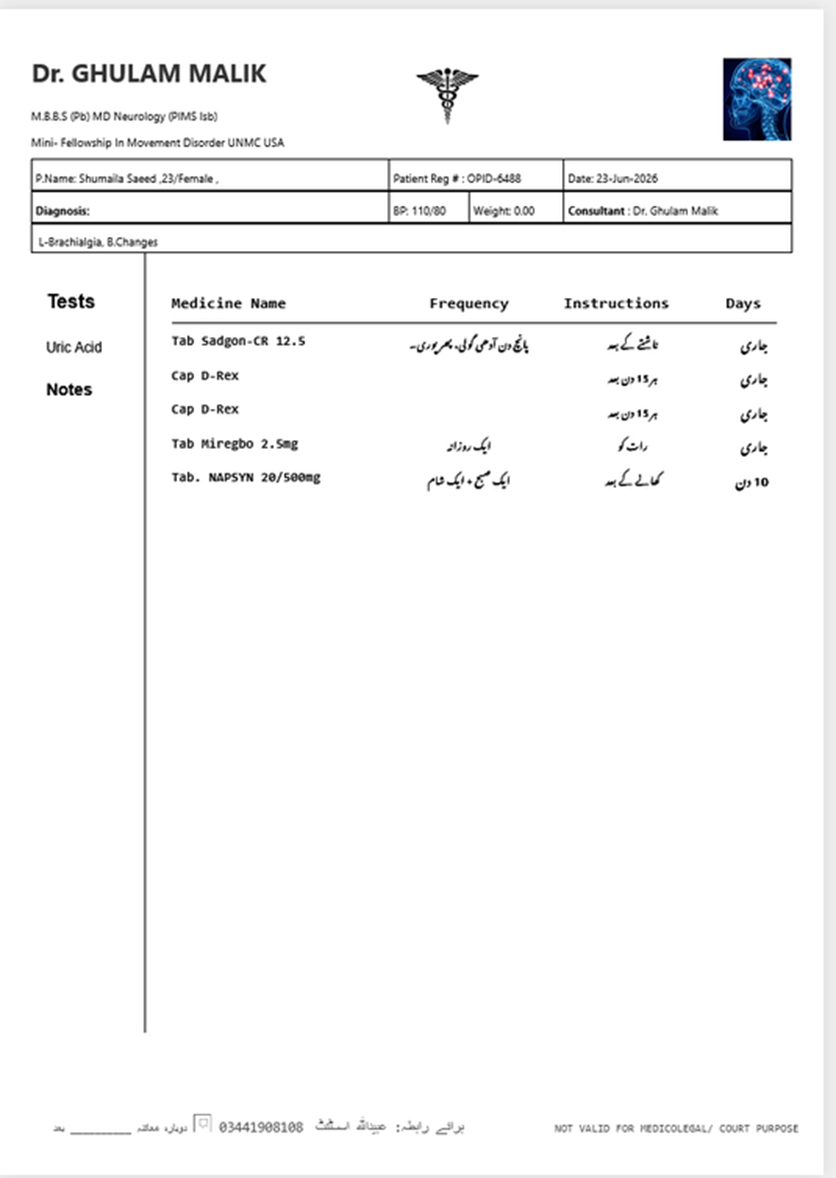
Prescription Layout Specifications
Purpose
This design presents a clean, professional, and readable layout for patient compliance. It separates consultant branding, patient vital statistics, diagnostic requests, and complex pharmaceutical dosing schedules into clear visual regions, minimizing clinical misinterpretation.
Print Document Structural Analysis
1. Corporate Medical Header (Branding & Credentials)
· Consultant Identity: Renders the primary specialist's name in bold, prominent lettering (Dr. GHULAM MALIK).
· Academic/Clinical Credentials: Sub-header rows dynamically map official qualifications and fellowships (M.B.B.S (Pb) MD Neurology (PIMS Isb), Mini-Fellowship In Movement Disorder UNMC USA).
· Logo Blocks: Implements a dual-anchor graphic system—featuring the standard medical Caduceus symbol centered, alongside a specialized neurological brain imaging visual asset on the right header margin to reinforce institutional branding.
2. Patient Metadata & Vitals Matrix
Encloses essential demographic telemetry into a structured, high-visibility cross-border data box:
· Demographics: Concatenates patient details cleanly into localized metadata tracks (P.Name:
Shumaila Saeed, 23/Female).
· System Tracking Index: Displays the primary table key key value (Patient Reg #: OPID-6488) for instant clinical record recall.
· Temporal Tracking: Logs the exact session timestamp entry (Date: 23-Jun-2026).
· Clinical Vitals Block: Displays active diagnostic screening markers ($BP: 110/80$, $Weight: 0.00$).
· Active Diagnosis Case Summary: Prints official clinical impressions directly beneath the tracking fields (Diagnosis:
L-Brachialgia, B.Changes).
3. Two-Column Clinical Workspace (Split View)
Left Sidebar Track (Investigations & Observations)
o Tests Region: Instantly generates an index list of requested laboratory or radiological procedures (e.g., Uric Acid) compiled during Step 6 of the wizard.
o Notes Region: Dedicated placeholder block for manual or system-generated clinical annotations.
Right Main Track (Pharmaceutical Formulation Sheet)
Maps out the active medication inventory parameters into a clear tabular format:
o Medicine Name: Displays formal clinical drug names, forms, and precise strengths (e.g., Tab
Sadgon-CR 12.5, Cap D-Rex, Tab Miregbo 2.5mg, Tab.
NAPSYN 20/500mg).
o Frequency / Dose: Renders targeted dosing behaviors using clean Right-to-Left (RTL) localized script or specific frequency .
o Instructions: Outputs precise time-of-intake guidelines mapped directly to the local language to ensure high patient compliance
o Days: Tracks treatment duration limits, handling explicit numerical counts alongside open-ended chronic maintenance parameters badged as continuous
4. Footer Rules & Institutional Disclaimers
· Follow-up Check Entry: Features an inline handwritten baseline string rule to schedule future patient review timelines.
· Communication Gateway: Prints the primary clinic or assistant contact vector details clearly (03441908108).
· Legal Compliance Guard: Includes a standard legal footer string right-aligned to prevent misuse outside of clinic bounds (NOT VALID FOR MEDICOLEGAL / COURT PURPOSE).
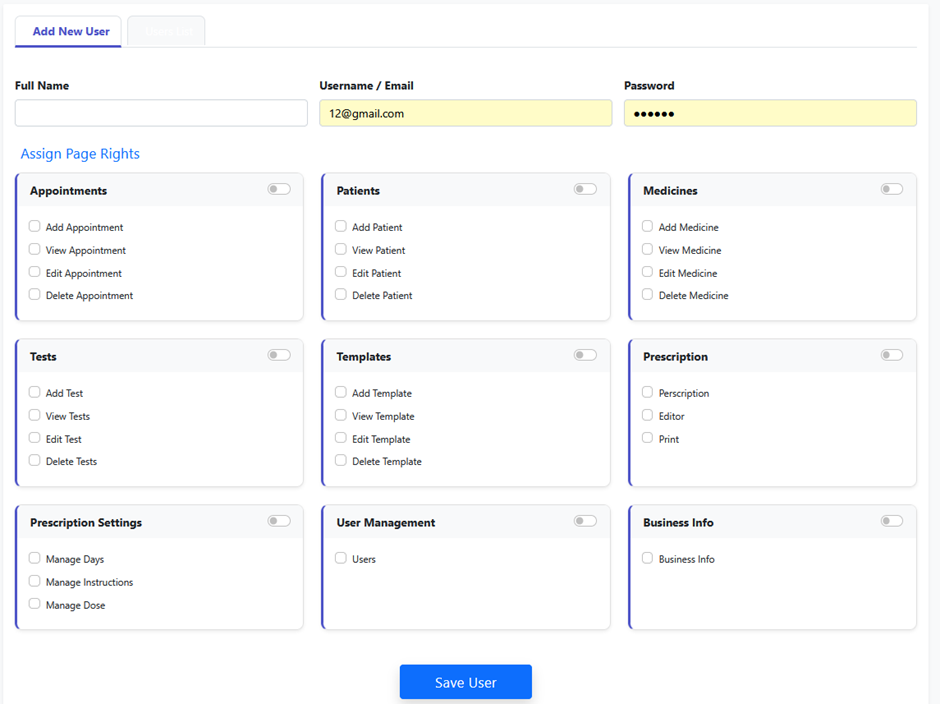
Role-Based Access Control (RBAC) Module
Purpose
This interface provides full system privileges configuration. It isolates user authentication profile definitions from operational page control settings, ensuring that clinical staff can only view, create, edit, or delete data segments that match their specific operational roles.
Component 1: Identity & Authentication Matrix
· Full Name Field: A single-line text input field designed to log the clear legal name of the employee or consultant for human resources tracking and session audits.
· Username / Email Field: The primary system login identification token. Features an auto-fill supported layout (e.g., 12@gmail.com) to serve as the user's primary security key.
· Password Field: A masked security credential input field. Displays characters as dots (••••••) to safeguard password privacy during manual creation profiles.
Component 2: Granular Page Rights Assignment Matrix (Assign Page Rights)
The core authorization layout is structured into a 9-box modular card matrix. Each functional domain features a global master toggle switch alongside line-item permissions tracking granular CRUD operations:
1. Appointments Permissions
· Granular Targets: Add
Appointment, View Appointment, Edit
Appointment, Delete Appointment.
· Role Context: Controls frontend clinic booking desk queue and appointment manager actions.
2. Patients Permissions
· Granular Targets: Add
Patient, View Patient, Edit Patient, Delete
Patient.
· Role Context: Restricts visibility over sensitive patient histories, demographic modules, and vital statistics logging.
3. Medicines Inventory Permissions
· Granular Targets: Add
Medicine, View Medicine, Edit
Medicine, Delete Medicine.
· Role Context: Guards the clinic's centralized pharmaceutical inventory directory table.
4. Tests Directory Permissions
· Granular Targets: Add Test, View
Tests, Edit Test, Delete Tests.
· Role Context: Restricts clinical configuration settings over the diagnostic test directory table.
5. Templates Engine Permissions
· Granular Targets: Add
Template, View Template, Edit
Template, Delete Template.
· Role Context: Manages core macro-level clinical order configurations used during fast prescription entry.
6. Prescription Engine Permissions
· Granular Targets: Prescription, Editor, Print.
· Role Context: Restricts entry into the active multi-step prescription writing wizard, the advanced layout editors, and physical output print engines.
7. Prescription Settings Permissions
· Granular Targets: Manage
Days, Manage Instructions, Manage
Dose.
· Role Context: Limits configuration control over the backend advanced lookup settings (bilingual scripts, frequencies, durations).
8. User Management Permissions
· Granular Targets: Users.
· Role Context: High-security administrative privilege allowing users to modify corporate permissions matrices or build new user accounts.
9. Business Info Permissions
· Granular Targets: Business
Info.
· Role Context: Controls global institutional settings including clinic details, custom branding parameters, and prescription headers.
Component 3: Transactional Security Controller
· Save User Button: A centralized, prominent royal blue action engine located at the footer. Upon execution, it validates string formatting arrays, creates the new user account profile in the database schema, securely maps selected authorization parameters to user relational roles tables, and flushes inputs for subsequent entries.
Business Info Module Specifications
Purpose
This interface provides full system administrative oversight over institutional identity parameters. By centralizing core facility metadata, it ensures brand consistency across digital assets and physical documentation while maintaining absolute data integrity for institutional reporting.
Header System Rules & Guardrails
1. Master Context Identifier
· Displays a distinct clinical facility icon paired with a clean "Clinic Information Management" header to mark the administrative system scope.
2. Fixed Enterprise Branding Header
· Features a prominent, full-width royal blue card banner establishing the master system instance name (NEURO CLINIC).
3. Configuration Data Guardrail
· Implements an explicit system warning alert text entry ("Clinic name is set via database and cannot be edited from here."). This safeguards corporate database architecture by blocking accidental inline text modification of primary facility keys at the application view layer.
Component 1: Profile & Regulatory Entry Matrix (Edit Doctor & Clinic Details)
The core data configuration panel tracks key healthcare metadata strings distributed across a symmetrical column field framework:
1. Practitioner Credentials
· Doctor Name: A single-line text input field establishing the primary consultant identity (e.g., Dr. Ghulam Malik) for dynamic script watermarks.
· Specialization: A standard text input tracking clinical focus vectors (e.g., NE neurologist).
· PMDC Registration No: Stores mandatory statutory licensing details (e.g., 9876-01-) to meet legal prescription print layout compliance criteria.
2. Geographic Parameters
· Clinic Address: A roomy, multi-line resizable text area designed to store geographic location metrics (e.g., Jhang). It features standard drag-handle width adjustment capabilities.
3. Integrated Communication Gateways
· Phone (Landline) & Mobile / WhatsApp Fields: Symmetrical numerical string slots designed to configure public-facing clinic access routes.
· Email: Standard email input format used for automated report delivery and system-level communications (e.g., test@gmail.com).
· Website (optional): An optional URL text field linking institutional online landing vectors (e.g., www.drghulam.com).
4. Operational Timelines & Emergency Protocols
· Clinic Timing: An alphanumeric input string tracking facility operational schedules (e.g., 2:00 - 8:00).
· Emergency Contact: A separate, quick-access backup telephone string intended to output high-visibility helpline numbers on patient-facing layouts.
Component 2: Global State Commit Controller
· Update Information Button: A centralized, emerald green transactional button equipped with a save icon at the layout footer. Upon execution, it triggers form field validation array loops, updates global institutional cache settings, executes an atomic sync back to the active database configuration schemas, and pushes immediate live modifications to the prescription printing layout template engines.
Client-Facing Frequently Asked Questions (FAQs)
Q1: What is the main purpose of the Neuro Clinic Management System?
A: This system is a modern, all-in-one healthcare management platform specifically engineered to optimize specialized medical practices and digital prescription processing. It digitalizes and automates everything from patient registration, vital signs logging, and appointment scheduling to digital prescription writing (Rx) and diagnostic test tracking.
Q2: How does the 6-Step Prescription Wizard benefit a busy doctor?
A: The 6-step wizard guides the consultant systematically through the consultation process:
1. Select or register the patient.
2. Log past history and allergies.
3. Note down active diagnosis.
4. Load disease templates with one click.
5. Auto-populate medicines with localized instructions.
6. Order laboratory tests and print.
This structured flow eliminates repetitive typing and allows doctors to complete a prescription in less than a minute.
Q3: Can we save default medication patterns for frequent diseases?
A: Yes. With the Prescription Template Engine, you can create predefined macros for recurring conditions (e.g., Chronic Headache, Epilepsy). When selected, the system instantly loads a predefined bundle of medicines, dosages, and diagnostic tests, which can still be edited or tweaked inline for individual patients.
Q4: How does the system handle localized instructions for patients who cannot read English?
A: The system features a built-in Bilingual Customization Engine. Administrators can pre-configure standard dosages and intake instructions in both English and native Urdu script. These print out perfectly on the physical prescription, ensuring maximum patient compliance and clarity.
Q5: Is patient data safe from unauthorized staff members?
A: Absolutely. The system uses a strict Role-Based Access Control (RBAC) security model. You can create unique user accounts for different staff members (receptionists, assistants, pharmacy clerks) and check/uncheck exact boxes to restrict their access. For example, a receptionist can manage appointments but cannot view or modify clinical diagnosis notes or prescription settings.
Q6: How are critical patient risks like allergies highlighted in the system?
A: During the patient history intake stage, the Allergies module is surrounded by a high-visibility crimson (red) safety border. This acts as an immediate visual flag for the medical operator to ensure that life-threatening hypersensitivities (like a penicillin allergy) are never overlooked.
Q7: What features help speed up data entry for the clinic staff?
A: The software is designed with advanced UI/UX optimization tools:
· Live Search with Asynchronous Filters: Instantly filters large databases of thousands of medicines or tests as you type, without reloading the page.
· Keyboard Navigation Event Listeners: In the medicine grid, pressing Enter in the last column automatically spawns a new empty data row so staff can type continuously without touching the mouse.
· Inline Creation Modals: Allows staff to register new patients or add missing medicines directly inside the prescription screen without breaking their active workflow.
Q8: Does the printout match professional hospital layout standards?
A: Yes. The system generates a clean, dual-column print layout optimized for A4 paper. It includes formal physician branding, academic credentials, licensing registration numbers (like PMDC), patient vitals, and a structured layout for medical orders. It also features a legal disclaimer footer ("Not Valid for Medicolegal / Court Purpose") to protect the institution.
Q9: Can we change the prescription layout or create unlimited templates?
A: Yes, completely. The software gives you total design and structural control. Through the built-in advanced settings, you can design and adjust your prescription format to perfectly match your clinic's branding. Furthermore, there is absolutely no limit you can create and store unlimited prescription templates for as many different neurological diseases and patient conditions as your clinic requires.
Q: How does the system prevent accidental drug double-dosing or prescription entry mistakes?
A: The system features a built-in Smart Duplication Settings Engine that monitors active medicine selections in real time. It can automatically check for identical brand names or identical generic chemical formulas across different rows, blocking dangerous duplicate entries before printing. Additionally, if an assistant types an un-registered or incorrect drug name, the field instantly triggers an inline red warning border to catch data errors on the spot.
Thanks for your feedback!